Packshot
Create clean, e-commerce-ready packshots from almost any source photo. Packshot takes a product image (or even an on-model photo) and renders it as a polished catalog shot, automatically cleaning up wrinkles, twisted collars, and asymmetric drape.
What is Packshot?
Packshot turns everyday product photography into commercial-grade catalog imagery. With Packshot you can:
- Start from a clean product, on-hanger, on-mannequin, or amateur on-floor photo
- Start from an on-model photo and have the person automatically removed
- Choose a presentation style (ghost mannequin, flat-lay, on-hanger, floating, and more) via the prompt or a reference image
- Get crisp, pressed, symmetric results without manual retouching
Use it for product listings, catalog hero shots, and marketplace assets.
When to Use
You have a product photo (or an on-model image) and you want a clean, catalog-ready packshot, not an on-model visual.
- If you want the product worn by an AI model, use Product to Model.
- If you want to transfer the product onto a specific model photo, use Try-On.
- If you already have a packshot and just want small tweaks, use Edit.
How to Use It
Upload Your Source Image
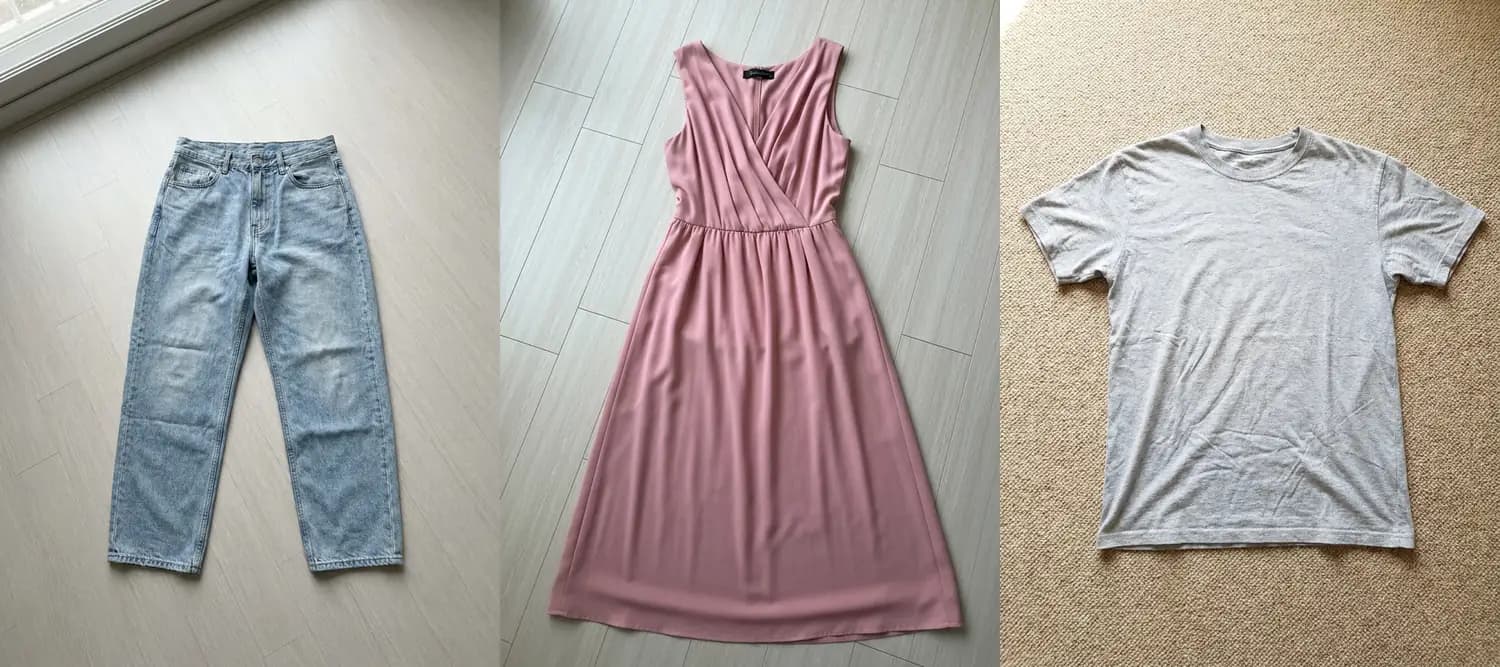
Upload the image you want to turn into a packshot. Packshot accepts a wide range of source styles, including clean product shots, on-hanger, on-mannequin, amateur on-floor photos, and on-model photos. When the source is on-model, the person is automatically removed and only the garment is rendered.
Choose a Style and Refinements (Optional)
The default presentation is ghost mannequin on a clean white background. To pick a different style, do one of the following:
- Write it in the prompt (for example, "flat-lay packshot", "on-hanger", "floating garment", or "draped on a stone plinth").
- Choose an Element from Clothing, Accessories, or Shoes through Image Context to use its presentation as a reference.
You can combine both: a reference image sets the look, and the prompt refines details like "marble surface", "soft window-light shadows", or "top-down camera angle". Keep the prompt focused on staging and styling, not on changing the product itself.
Generate
Click Run to generate. You can produce 1-4 variations per run.
Prepare for Export or Continue Editing
Send your result straight into another tool, or download it from Gallery.
- Download or export the image from Gallery
- Make small tweaks with Edit
- Increase resolution with Upscale
- Fit marketplace ratios with Reframe
Parameters
Only the source image is required. Other inputs are optional and can be combined.
| Parameter | Description |
|---|---|
| Source image | The product or on-model photo to turn into a packshot. Supported sources include clean product, on-hanger, on-mannequin, amateur on-floor, and on-model photos. |
| Text prompt | (Optional) Use the prompt to pick a presentation style ("flat-lay", "on-hanger", "floating") and refine staging ("marble surface", "window-light shadows", "top-down camera angle"). Keep the prompt focused on style, not on changing the product. |
| Image Context | (Optional) Style reference for lighting, surface, composition, and mood. Upload an image, select one from Gallery, or choose an Element from Clothing, Accessories, or Shoes. |
| Number of images | Generate 1-4 outputs in one run. Credit use scales with the count. |
| Aspect ratio | Choose the output ratio. If you don't choose one, the result inherits the ratio from the reference image you supplied (Image Context; otherwise the source image). Supported: 1:1, 3:4, 4:3, 9:16, 16:9, 2:3, 3:2, 4:5, 5:4. |
| Resolution | Auto (default), 1K, 2K, 4K. Auto matches output to your input image resolution. See Resolution & Generation Mode. |
| Generation Mode | Auto (default), Fast, Balanced, Quality. Auto selects the optimal mode for your input and elevates to Balanced when an Image Context is provided. See Resolution & Generation Mode. |
Packshot Styles
Packshot does not use a preset selector. Style is driven by your prompt and your Image Context reference. The defaults match a clean ghost-mannequin packshot on a neutral background.
Common styles you can request in the prompt:
- Ghost mannequin (default): garment shaped by an invisible form with clean neck, sleeve, and hem openings.
- Flat-lay: garment laid flat, viewed from above. Pairs well with surface and shadow descriptions like "on marble" or "with soft window-light shadows".
- On-hanger: garment displayed on a visible hanger against a clean wall.
- Floating: garment rendered as if suspended in air, with no visible support.
You can also mix in named props or surfaces ("draped on a stone plinth", "on raw concrete floor", "with a hard editorial shadow") to steer composition and mood.
Image Context
Use Image Context when a style is easier to show than to describe, such as a specific surface, lighting, composition, or mood.
Upload an image, select one from Gallery, or choose an Element from Clothing, Accessories, or Shoes.

Best Practices
- Provide the cleanest source you have. Sharp focus and good lighting carry through to the packshot.
- Keep the prompt focused on staging and styling (presentation, surface, lighting, camera angle). Avoid describing a different product.
- Don't ask for cleanup explicitly. Wrinkles, twisted collars, asymmetric drape, and uneven hems are removed automatically. Construction, seams, prints, and proportions are preserved.
- When you want a specific item from a multi-piece source, name it in the prompt (for example, "just the jacket", "only the shirt").
- For catalog detail pages or marketplace listings, generate at 2K or 4K so details stay sharp at high zoom.
What's Supported
- Source images: clean product, on-hanger, on-mannequin, amateur on-floor, and on-model photos
- Presentation styles: ghost mannequin (default), flat-lay, on-hanger, floating, and freeform styling via the prompt
- Item isolation: when the prompt names a specific item, only that item is rendered
- All major wearable categories, including garments and accessories such as shoes, bags, hats, and eyewear
- Vertical, square, and widescreen output formats
Troubleshooting
If your output doesn't look quite right:
- The wrong item was rendered → Name the item explicitly in the prompt (for example, "only the jacket", "just the shoes").
- The composition feels generic → Add an Image Context reference to lock in the surface, lighting, or composition you want.
- The style isn't what you expected → Name the presentation in the prompt ("flat-lay packshot", "on-hanger", "floating garment") instead of relying on the default.
- Wrinkles remain → Cleanup is handled by default, but you can emphasize it in the prompt with instructions like "make the garment pressed, symmetric, and neatly arranged".
Where Next?
After generating, the post-result suggestion bar offers quick access to related tools:
- Make small tweaks with Edit
- Increase resolution with Upscale
- Fit marketplace or social aspect ratios with Reframe
- Convert your new image into motion clips with Image to Video