Model Swap
Swap the person while keeping the outfit, pose, lighting, and background the same. Model Swap changes the model’s appearance (identity, skin tone, hair, face) and preserves the product exactly as it appears.
Use it when you want consistent product visuals with a different person representation.
What is Model Swap?
Model Swap is identity transformation. You are not changing the clothes or re-posing the subject. You replace or modify the person’s look while keeping everything else intact.
It supports high resolutions and can match a consistent campaign model when needed.
When to Use
You have an existing image of a product worn by a person or mannequin and you want to replace the person while keeping the product unchanged.
- Starting from a product photo without a person? Use Product to Model.
- Want to place a worn product onto another specific person's photo while keeping the pose and background? Use Try-On.
- Want a clean catalog packshot of the garment alone, without a model? Use Packshot.
How to Use It
Choose Your Source Image
Select an image where the outfit and pose are exactly how you want them. This image defines the outfit, pose, lighting, and background.
Add Optional Guidance
You can run with or without a prompt. To guide identity and styling, you can add:
- Text Prompt to describe features like age, hair, skin tone, and general style
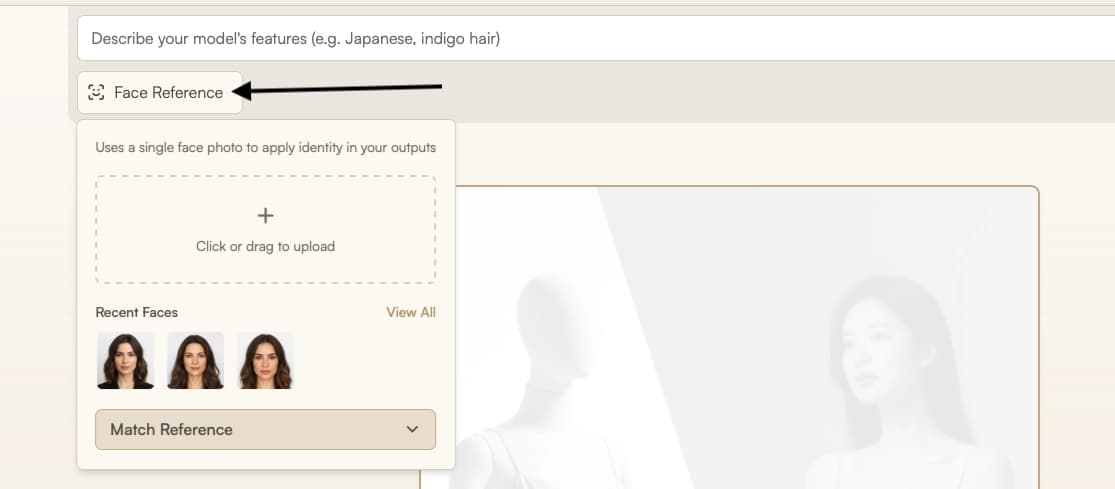
- Face Reference to match a specific person (see Face Reference guide)
The product, pose, and background stay the same.
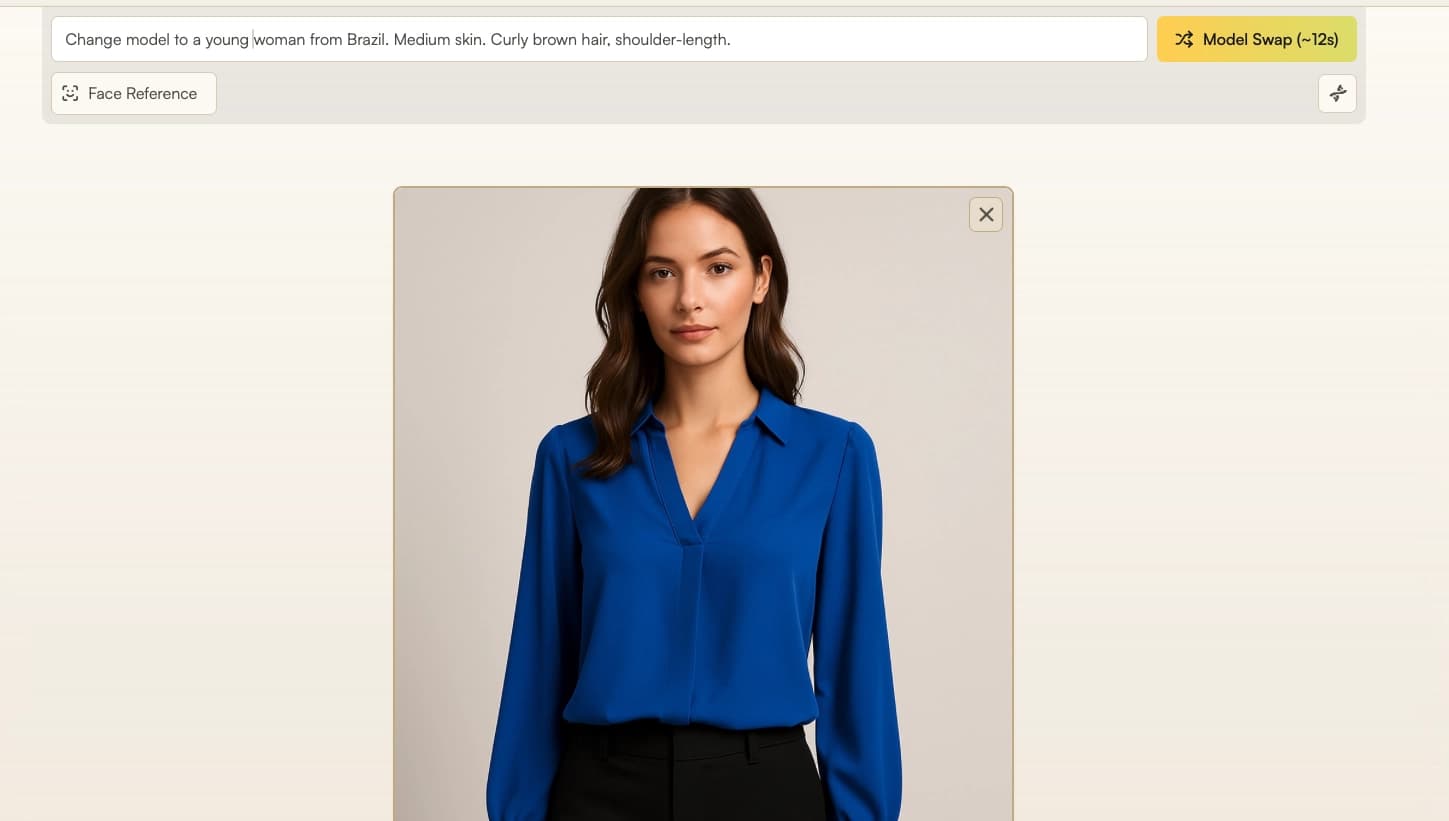
You can change the background using a text prompt in this tool, but for higher quality results, use Edit instead. It automatically adjusts lighting and shadows to match the new background.
Run the Swap
Click Run. Processing completes in seconds.
Review and Adjust
Review the result. Re-run for another option or refine your text prompt for identity details.
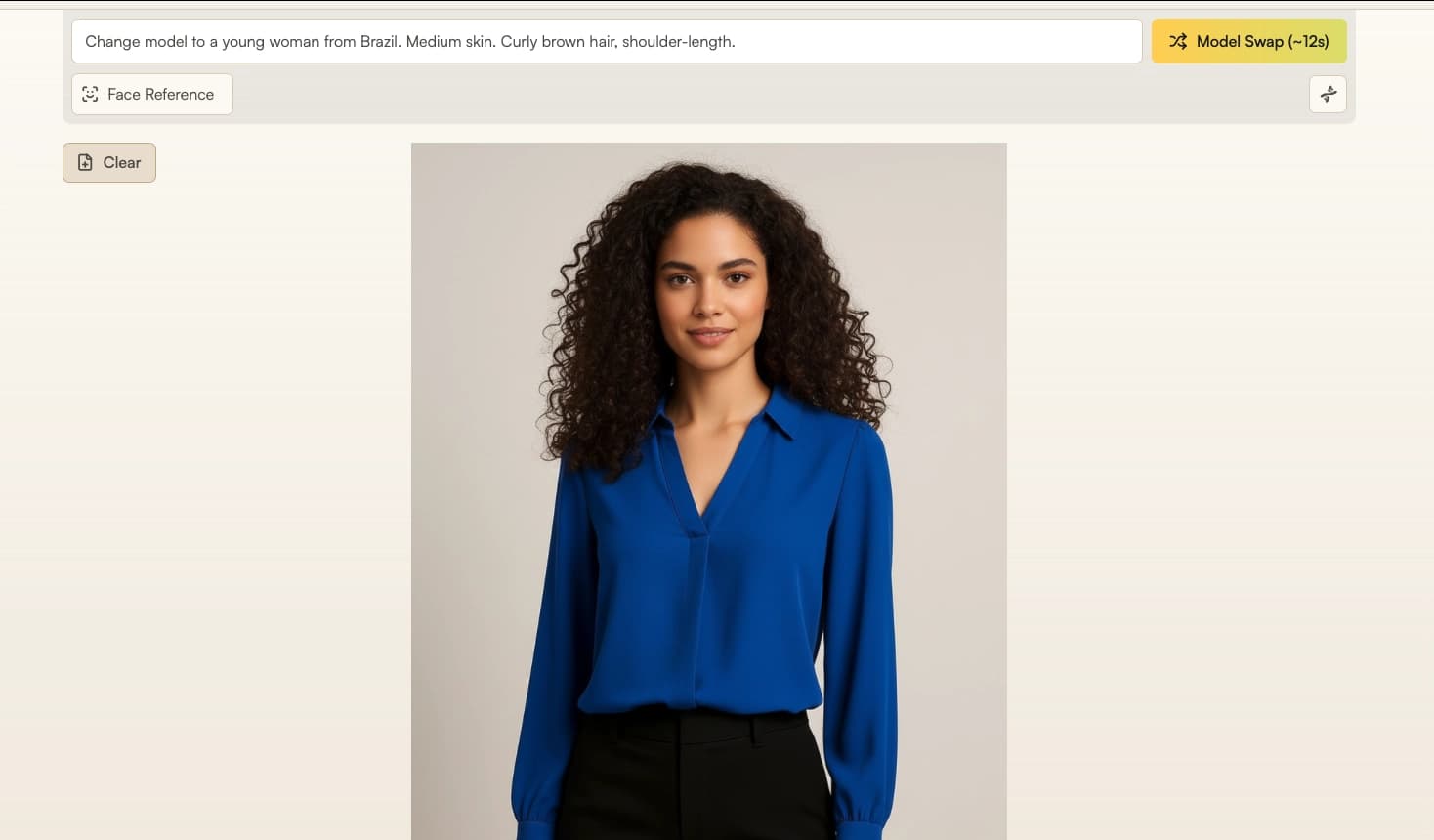
Prepare for Export or Continue Editing
Prepare your result for export or continue refining:
- Download, upscale, or export the image from Gallery
- Adjust background or aspect ratio with Edit and Reframe
- Create a short video from this image with Image to Video
Parameters
Only the source image is required. Other inputs are optional and can be combined.
| Parameter | Description |
|---|---|
| Source image | An on-person or mannequin photo of your product with clear outfit, pose, and lighting. This defines the outfit, pose, and background to keep. |
| Number of images | Generate 1–4 images in one run to compare multiple identity variations at once. |
| Text prompt | Describe visible identity attributes such as apparent age, hair, skin tone, facial hair, and overall style. If no text prompt is provided, the system will make a subtle identity adjustment while keeping a similar apparent age range and visible skin tone. When used with a face reference, the text prompt can refine the appearance by adjusting details like hairstyle, expression, or gaze direction. |
| Resolution | Auto (default), 1K, 2K, 4K. Auto matches output to your input image resolution. See Resolution & Generation Mode. |
| Generation Mode | Auto (default), Fast, Balanced, Quality. Auto selects the optimal mode for your input. See Resolution & Generation Mode. |
| Face reference | Face image to match identity. Useful for matching a specific person across a campaign. See Face Reference for plan details. |
Best Practices
- Use a high-resolution (at least 1K), well-lit source image with minimal background clutter.
- Focus on identity changes only; for pose or background changes, use Edit instead.
- For Face Reference, use a clear, front-facing photo with consistent lighting. See Face Reference for reference options.
Troubleshooting & Tips
- Incomplete body swap → For major identity changes (for example, from light to dark skin tone), the system may miss updates on extremities such as hands or feet. If this occurs, include an additional instruction in the text prompt to update the skin tone in those areas.
- Partial mannequin completion → When using a mannequin missing arms or lower body, the system may only swap visible sections. To complete the figure, add a text prompt instruction such as “add lower body with matching pants” or “add arms with matching skin tone.”
Where Next?
After swapping, the post-result suggestion bar offers quick access to related tools:
- Increase resolution with Upscale
- Create new poses or add branded scenes with Edit
- Fit marketplace or social aspect ratios with Reframe
- Create motion clips with Image to Video