
Background Remove
Isolate your model or product for clean exports. Background Remove deletes the background from an image so you can export transparency or fill with a solid color.
What is Background Remove?
Background Remove deletes the background and leaves the subject intact. Choose a transparent background for overlays or a solid color to match your brand.
When to Use
Use Background Remove when you need a clean cutout of your subject for compositing, catalog listings, or brand-matched backgrounds. For replacing the background with a new scene, use Edit instead.
How to Use It
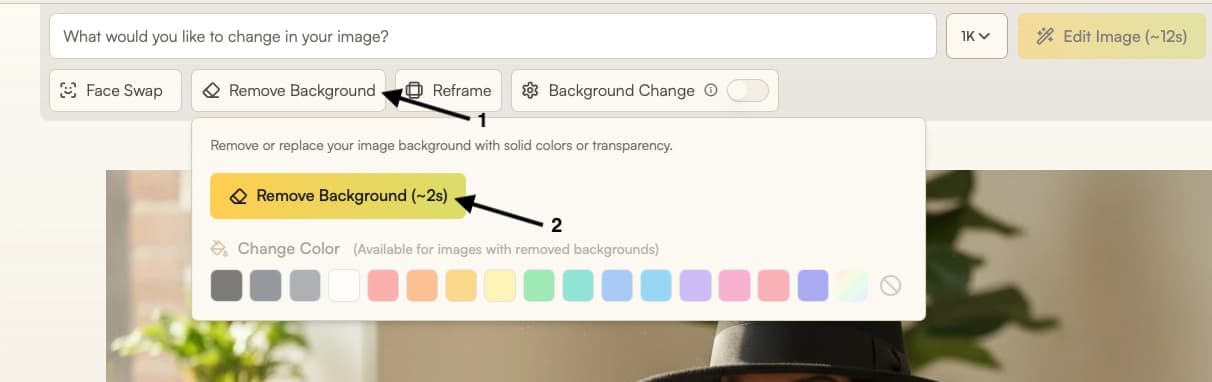
Select Background Remove from the Toolbar
Select Background Remove from the toolbar in Studio, then upload an image or choose one from your history. For best results, start with a clear, well-lit photo where the subject stands out from the background.
Run Background Remove
Click Run. The system detects the subject and removes the background in under 2 seconds.
Choose Output
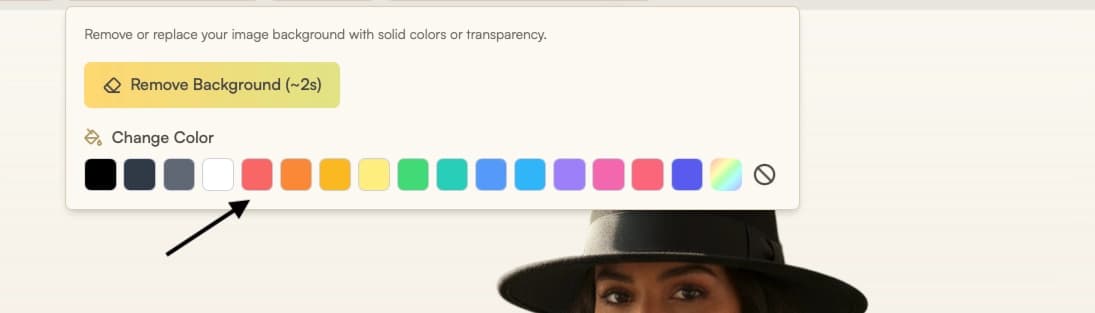
After removal, choose how to export:
- Keep a transparent background for ecommerce or compositing
- Fill with a solid color to match your brand palette
- Or continue in Edit to set a new scene
Prepare for Export or Continue Editing
- Download or export the image from Gallery
- To keep the background transparent, export as PNG for full quality or WEBP for smaller file size with transparency preserved.
- Edit removes transparency, so make those edits first. Upscale keeps it.
Parameters
| Parameter | Description |
|---|---|
| Image | The image you want to process, uploaded or selected from history. |
| Color | (When image is transparent) Choose a brand color or neutral tone for catalogs. |
Limitations
- High-quality background removal is optimized for images up to 2K resolution.
- Fine edges such as hair strands or thin fabric fibers may be imperfectly detected, resulting in slight loss or background artifacts.
- Sheer fabric such as tulle is not made semi-transparent. For that, create a transparent image with Agent.
- When an image contains multiple potential foreground elements (for example, a person and a table in front of them), the system may preserve all of them rather than removing secondary objects.
Where Next?
After removing the background, the post-result suggestion bar offers quick access to related tools:
- Export with transparency from Gallery
- Continue refining with Edit