
Reframe
Transform images to any aspect ratio while preserving important content. Reframe analyzes your image and automatically decides whether to expand (add new content) or crop (focus on key elements) to reach the target format.
What is Reframe?
Reframe automatically adjusts your image to a new aspect ratio by analyzing the content and choosing the best approach:
- Expansion: When the target ratio requires more canvas, the AI generates new content that naturally extends backgrounds, surfaces, and textures.
- Cropping: When the target ratio is more constrained, the AI identifies the most important subjects and trims sparse areas while keeping the visual focus intact.
This makes it easy to prepare visuals for different platforms without manual editing or awkward cuts.
When to Use
Use Reframe when you need to adapt an image for a specific platform or layout, such as converting a portrait to landscape for a web banner, or a square to 9:16 for Reels and TikTok.
How to Use It
Select Reframe from the Toolbar
Select Reframe from the toolbar in Studio, then upload an image or choose one from your history.
Pick a Target Aspect Ratio
Choose from the supported ratios:
- 16:9, 5:4, 4:3, 3:2, 1:1, 2:3, 3:4, 4:5, 9:16
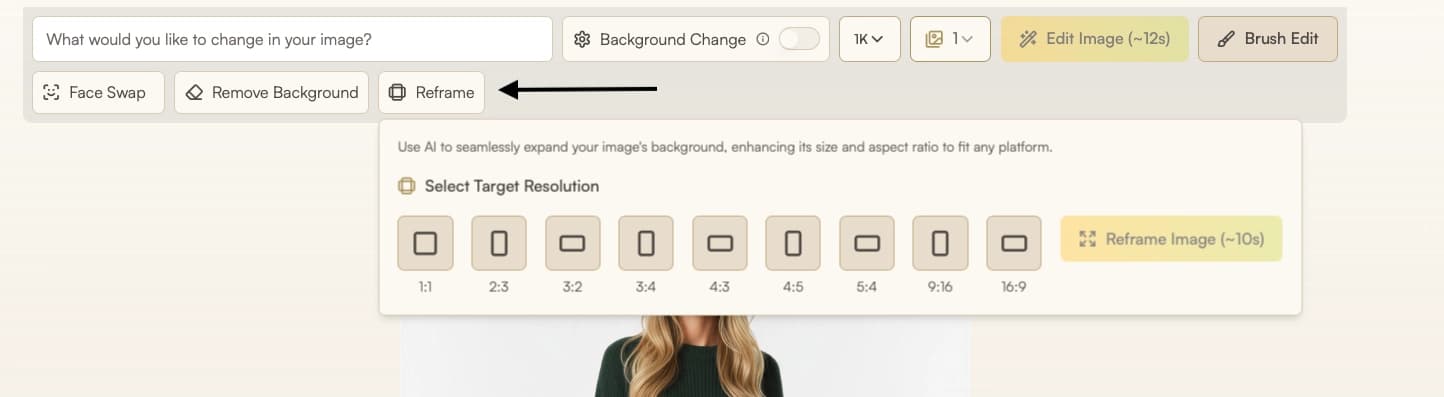
Generate
Click Run to process the image. The AI will analyze your content and apply the optimal transformation.
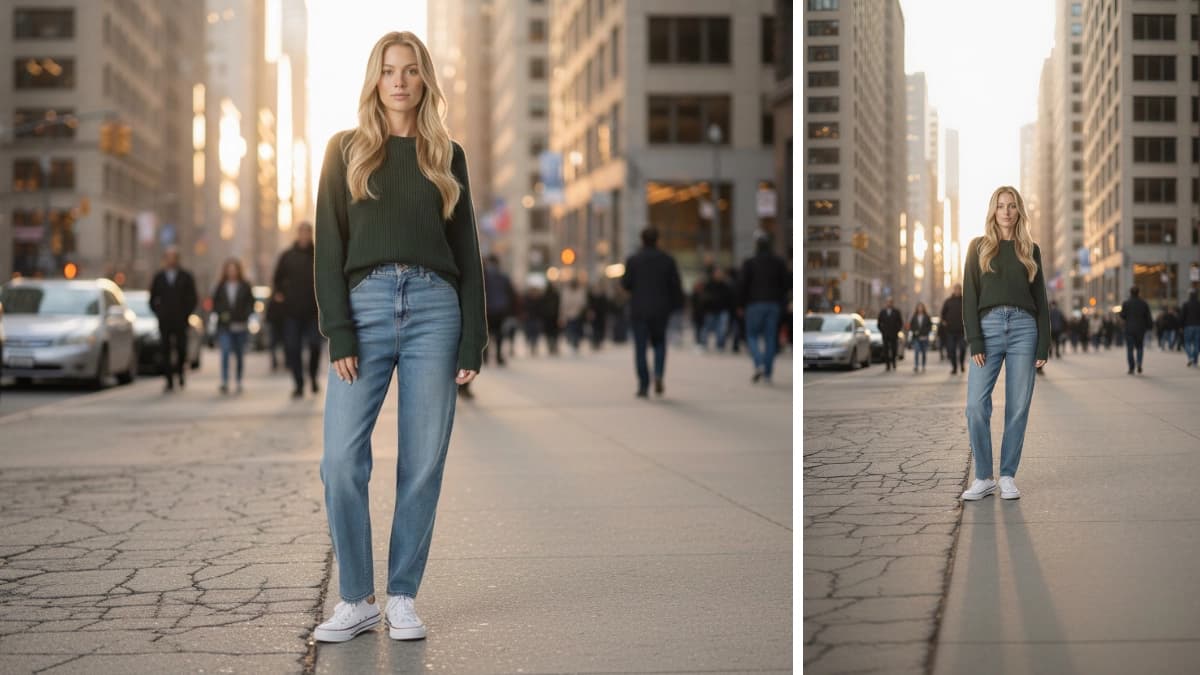
Parameters
| Parameter | Description |
|---|---|
| Image | The image you want to reframe, uploaded or selected from history. |
| Aspect ratio | Target ratio for the output. The AI determines whether to expand or crop based on your image content. Supported: 16:9, 5:4, 4:3, 3:2, 1:1, 2:3, 3:4, 4:5, 9:16. |
Best Practices
- Reframe to 9:16 before creating a video with Image to Video for Instagram Reels, TikTok, or YouTube Shorts.
Troubleshooting
If your reframed image does not look quite right, try the following:
- Subject duplicated: When changing between extreme aspect ratios (for example, from 9:16 to 16:9), the system may duplicate the subject. If this happens, reframe in smaller steps: first to a square format, then to the wider aspect ratio.
Where Next?
After reframing, the post-result suggestion bar offers quick access to related tools:
- Increase resolution with Upscale
- Download or export final files from Gallery
- Create motion clips with Image to Video