
Create Face
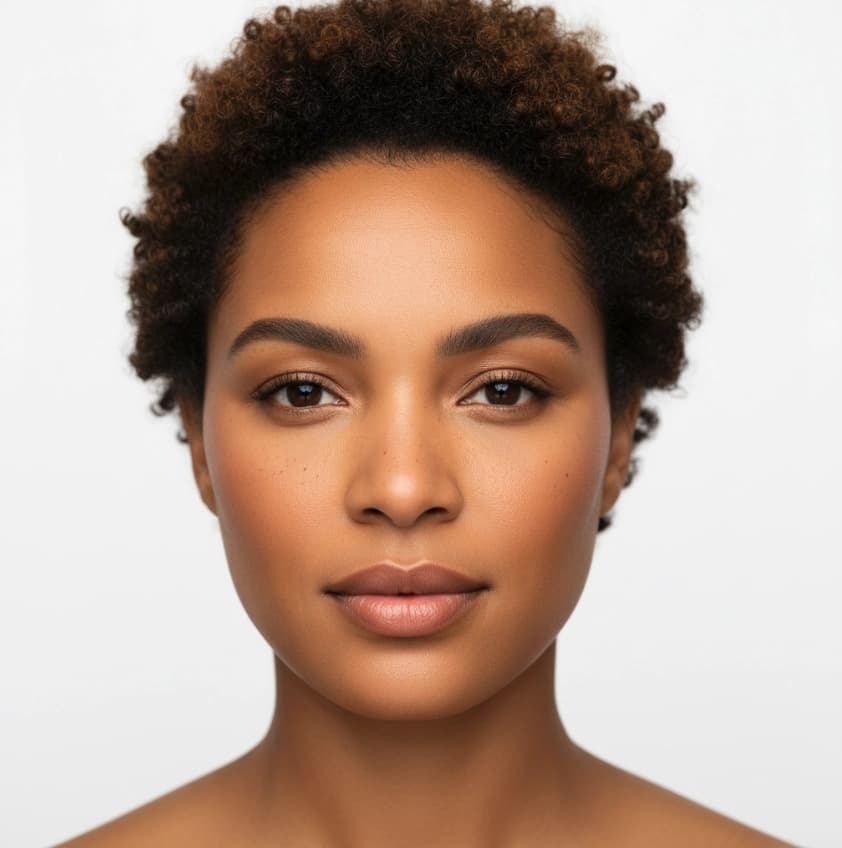
Generate a new face identity from a short text prompt. Create Face produces consistent faces you can reuse across model creation and swaps.
What is Create Face?
Create Face generates lifelike faces from text descriptions. Produce multiple angles and expressions of the same identity, then use those faces across Create Model, Model Swap, and other workflows.
When to Use
Use Create Face when you need a specific face identity that does not exist yet. The generated faces work as Face References in other Studio tools.
How to Use It
Select Create Face from the Toolbar
Select Create Face from the toolbar in Studio.
Describe the Face
Write a clear prompt. Example: "woman in her 30s, warm brown skin, short curly hair, natural makeup."

Select Resolution and Number of Images
Choose a resolution (Precise 1K or Balanced 4K) and how many images to create (1-4), then click Run.
Generate Variations
Under each result, describe the variation you want (for example: three quarter view, look up, slight smile), then click Create Variation. Variations preserve identity while changing angle or expression.

Use the Face
Find the face in Gallery and use it as a Face Reference in Create Model, Model Swap, Product to Model, or Face Swap.
Parameters
| Parameter | Description |
|---|---|
| Face prompt | Text that describes age, skin tone, hair style, and overall appearance. |
| Number of images | Choose how many images to generate (1-4). |
| Resolution | Supported: Precise 1K (default) and Balanced 4K. Balanced 4K can yield more realistic faces but costs more per request. See Parameter Deep Dives: Resolution for behavior and tradeoffs. |
| Variation prompt | Text under a result to request a small change in camera view, head angle, expression, or gaze direction. |
Best Practices
- It is highly recommended to upscale your favorite faces. Upscaling enhances skin, eyes, and hair details, increasing realism and improving results when using the image as a Face Reference.
Where Next?
After creating your ideal face, use it as a Face Reference in:
- Product to Model for consistent on-model visuals
- Model Swap for identity replacement
- Create Model for full model generation
- Face Swap for face-only changes