Image to Video
Create short motion clips from finished on-model images. Use Image to Video to add subtle camera movement and garment motion for Reels, Shorts, or other video platforms.
What is Image to Video?
After you have produced a high quality image (from Product to Model, Try On, or Model Swap), Image to Video adds subtle camera moves, garment motion, and lighting shifts to produce a short clip.
When to Use
Use Image to Video when you have a finished image and want to create a short video clip for social media or product pages. For best results, reframe your image to 9:16 first if targeting vertical video platforms.
How to Use It
Select Image to Video from the Toolbar
Select Image to Video from the toolbar in Studio, then upload an image or choose one from your history. Pick a finished image where model, garment, pose, and background are set.
Configure Settings
Set your preferences:
- Duration: 5 seconds or 10 seconds
- Video Resolution: Choose 480p, 720p, or 1080p depending on your plan. Higher resolutions use higher-quality AI models and cost more credits. See Resolution for details.
- Prompt (optional): short instruction like "touch fabric" or "subtle camera pan"
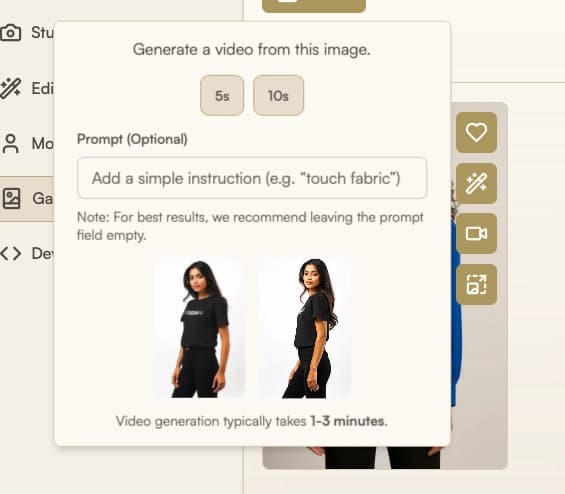
Generate
Click Run to start generation. Processing time varies by image and server load.
Review and Download
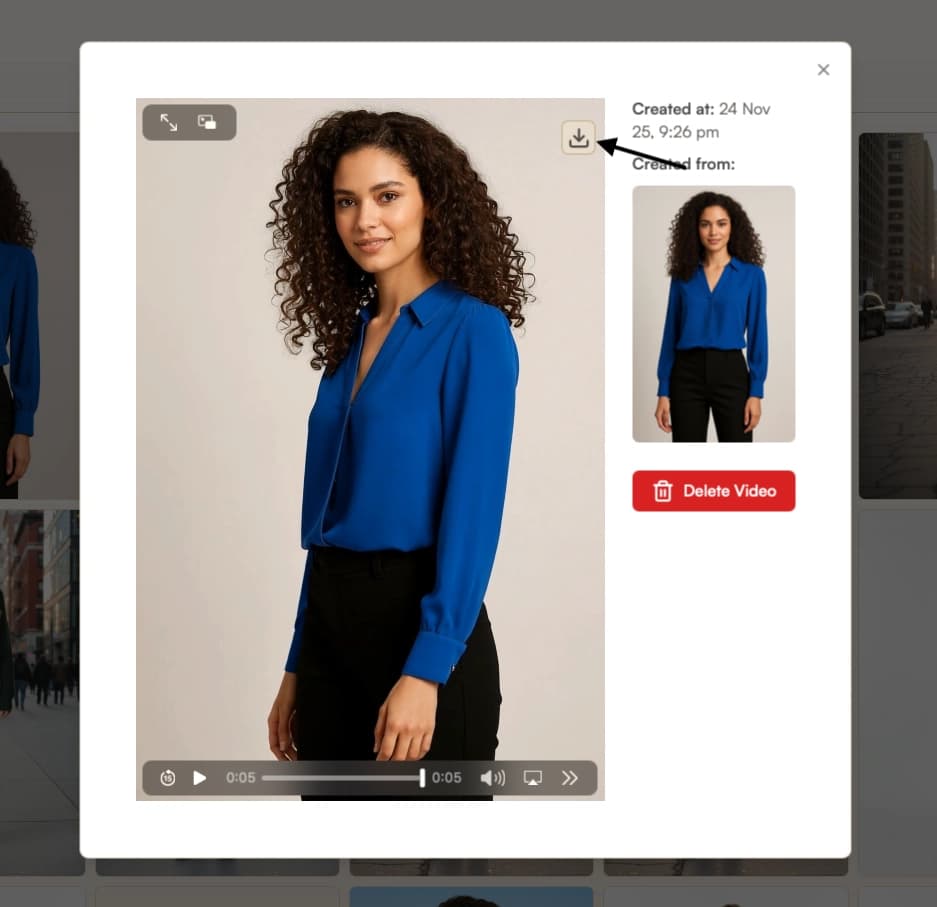
When processing completes, the video appears in your history and in Gallery. If motion looks natural and product appearance is preserved, download via the controls.
Publish
Upload to your channels such as Reels, Shorts, or store banners.
Parameters
| Parameter | Description |
|---|---|
| Base image | Finished on-model image, uploaded or selected from history. Higher resolution and clean backgrounds improve results. |
| Duration | Length of the clip: 5 seconds or 10 seconds. |
| Video Resolution | Output resolution and quality tier: 480p (Basic+), 720p (Pro+), 1080p (Agency). Each resolution uses a different AI model optimized for that fidelity level. See Resolution. |
| Prompt (optional) | Short instruction to influence motion emphasis, for example "touch fabric" or "subtle camera pan". |
Best Practices
- Running without a prompt produces more natural, subtle motion. If you must add special instructions, keep them short and specific (for example, "raises arm to touch face").
- 5-second clips are easier to control and guide compared to 10-second clips.
- Reframe your image to 9:16 with Reframe before generating video for Instagram Reels, TikTok, or YouTube Shorts.
Troubleshooting
If your video does not look as expected, try:
- Motion looks unnatural: Pick a base image that allows for more natural movement. If you used a special instruction, simplify or remove it. Try a 5-second version first to check for improvement.
Where Next?
- Download your finished video from Gallery