
Upscale images
Use upscaling to make an existing image larger and sharper while keeping its composition. Agent supports 2× and 4× upscaling and uses 2× by default. Agent can also enhance an image at its current size.
Upscale an image
Attach or reference the image you want to upscale, then ask Agent to upscale it.
Upscale this image.
Request 4× explicitly when you do not want the default 2× option.
Upscale this image by 4×.
When several images are available, identify the exact image you want to use. After a generation, a short follow-up can use the latest result when your choice is clear.
The upscaled image appears in the conversation and is saved to Gallery.
What upscaling improves
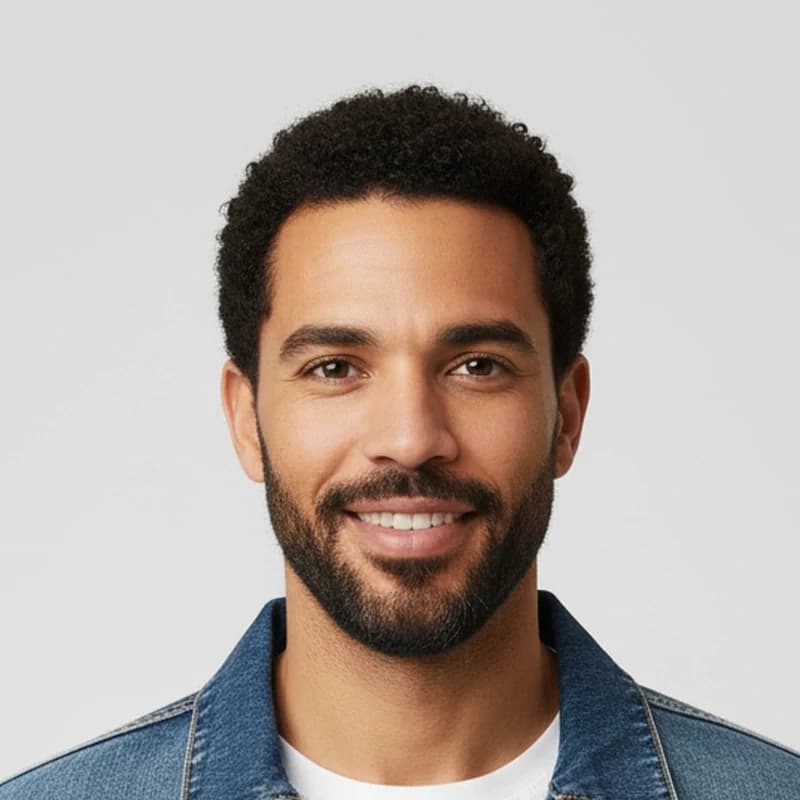
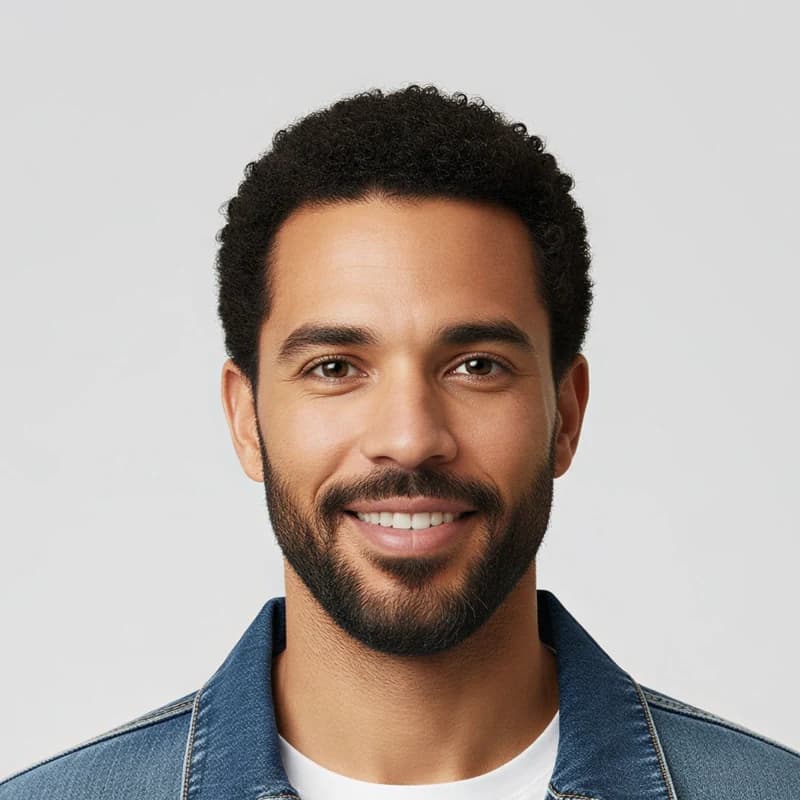
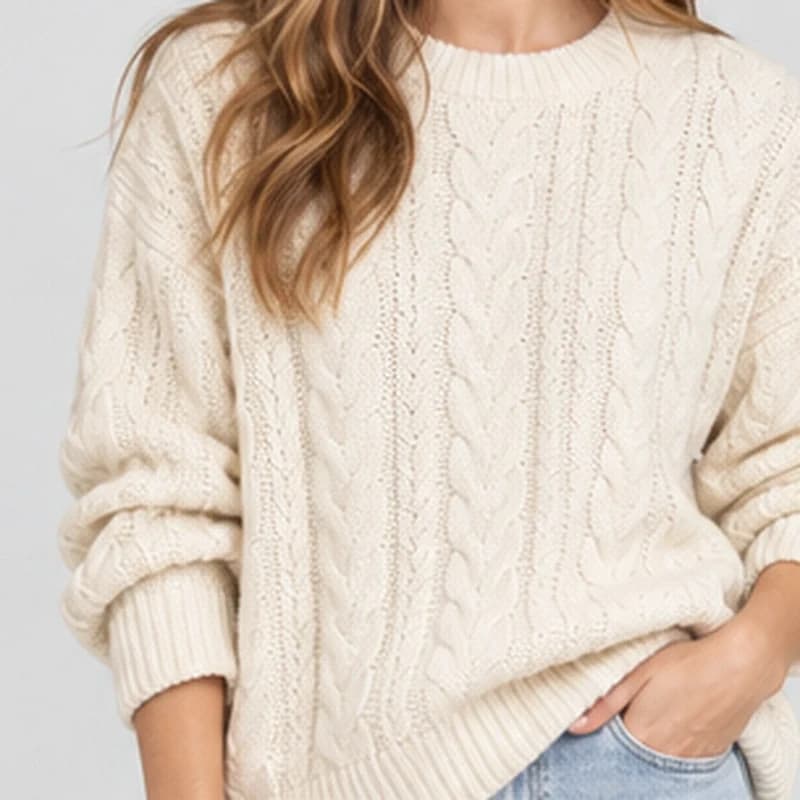
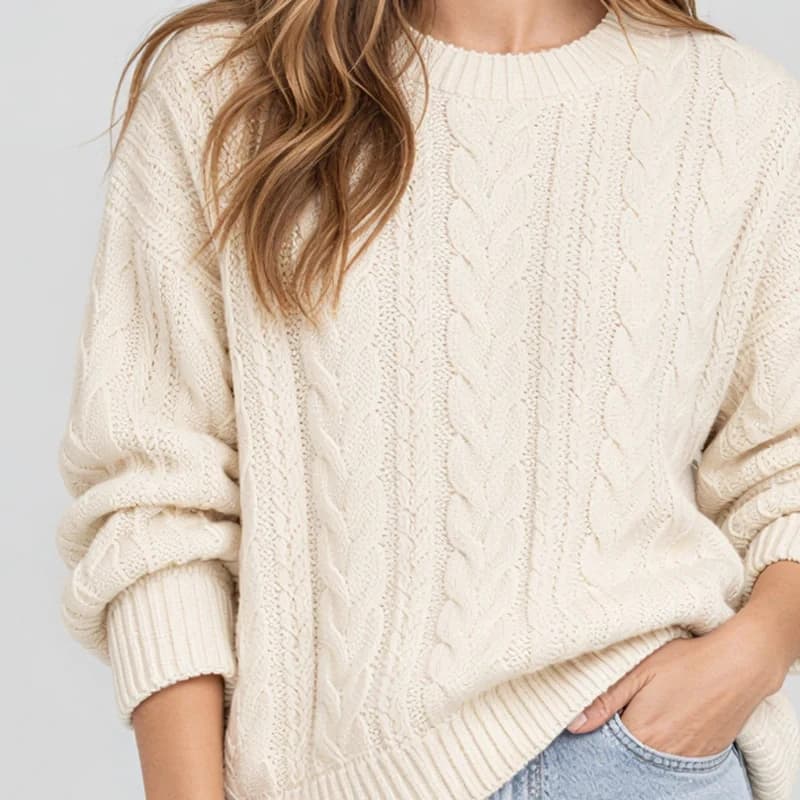
An upscale does more than add pixels. It also restores fine detail, so it works well on a 1K image that looks soft or slightly artificial. It can:
- Make people look more real: natural skin texture, defined hair, and sharper eyes.
- Bring back fabric detail: knit stitches, weaves, seams, and stitching.
- Clean up artifacts: smudged, blurry, or blotchy areas become crisp again.
Each example below is a 1K result next to the same image upscaled 2×.
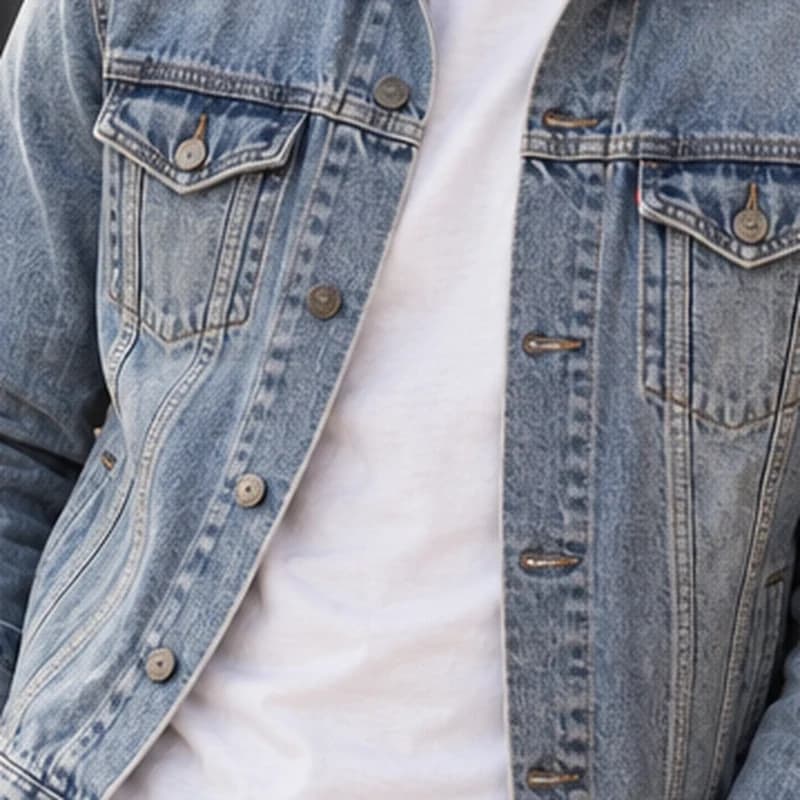
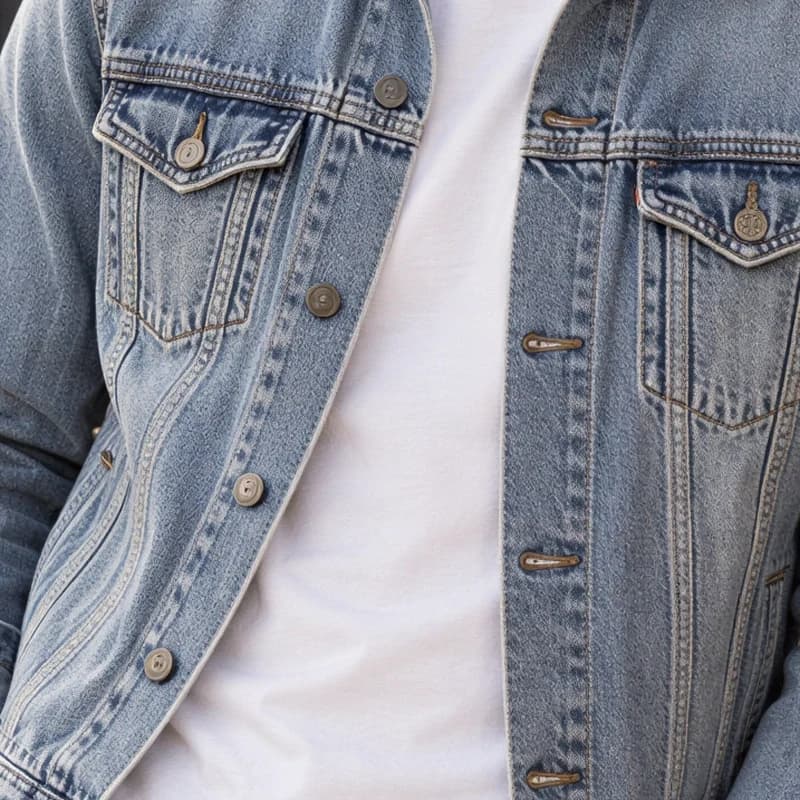
Enhance an image at its current size
An enhance restores detail without making the image larger. Use it when an image already has the size you need, or when it is at the maximum size.
Enhance this image without making it bigger.
Resolution and limits
| Option | What it does |
|---|---|
| 2× | Doubles the image's width and height. This is the default. |
| 4× | Quadruples the image's width and height. You must request it explicitly. |
| Enhance | Keeps the image's size and restores detail. |
The maximum output is 4K (~16MP). Agent cannot enlarge an image that is already at this limit, but it can still enhance it at its current size.
FASHN's image-resolution tiers map to total pixel counts: 1K (~1MP), 2K (~4MP), and 4K (~16MP). Exact dimensions depend on the image's aspect ratio.
Generation settings control the resolution of a new image or edit. Upscaling enlarges an image that already exists.
Recommended workflow
Create and edit at 2K (~4MP), then upscale only your selected final results to 4K (~16MP). Working at 2K is faster and more cost-efficient, and generally makes complex edits easier to control, with results that follow your instructions more reliably.
A result created directly at 4K can differ slightly in fine detail from a 2K result upscaled to 4K, but the gap is usually barely noticeable.
When to ask for a repair instead
Upscaling and enhancing restore detail but keep the content as it is. When an image has a wrong shape, an airbrushed or fake look, or a face that changed over several edits, ask Agent for a repair instead. See Preserve and Repair Image Quality.
What's Next?
- Create or edit an image before upscaling it.
- Create a video from your finished image.
- Open Gallery to find and download the result.
Last updated on