
Preserve and Repair Image Quality
Each edit in Agent creates a new version of the whole image, and every new version loses a little quality. One edit is fine, but after several edits in a row, hair, skin, and fabric start to look soft, waxy, or blotchy. This guide shows you how to keep quality high, and what to say when an image needs a repair.
Agent watches for this by itself and offers a fix when it sees one. The messages below help you steer it when you want a fix now.
The edit examples come from one Agent conversation at 2:3 and 1K. Small images wear down faster, so the changes are easy to see.
How images wear down
This conversation started with one model, then made four small edits in a row: a sage blazer, a new pose, jewelry, and ivory trousers.
New conversation
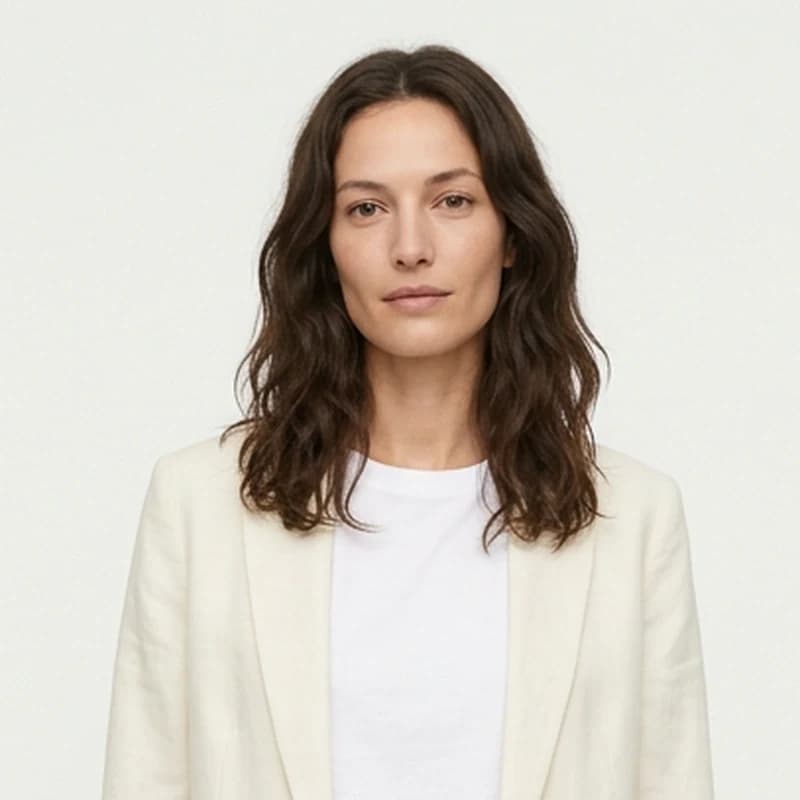
Create a model for our spring lookbook: a woman in her early 30s with shoulder-length dark brown wavy hair, wearing a cream linen blazer over a white tee and light blue straight jeans, clean studio
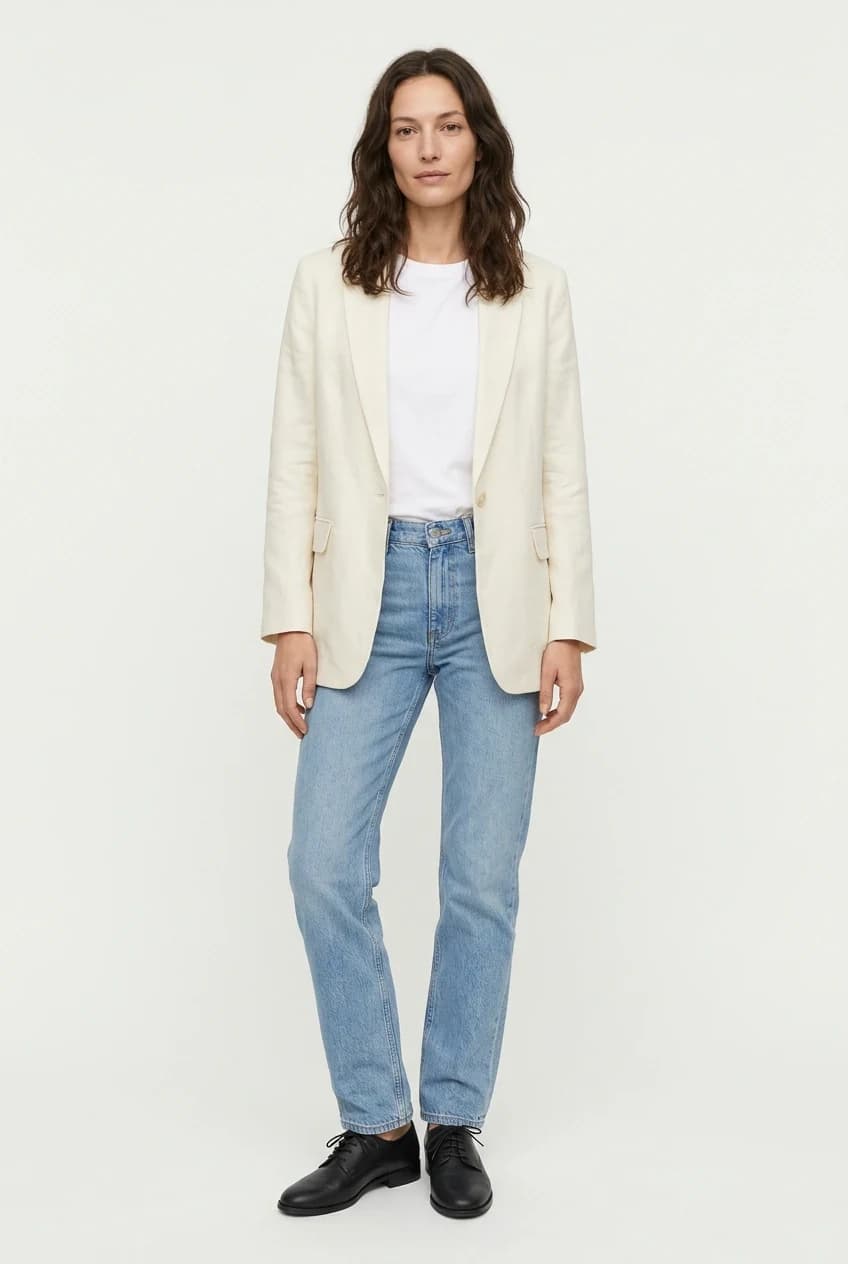
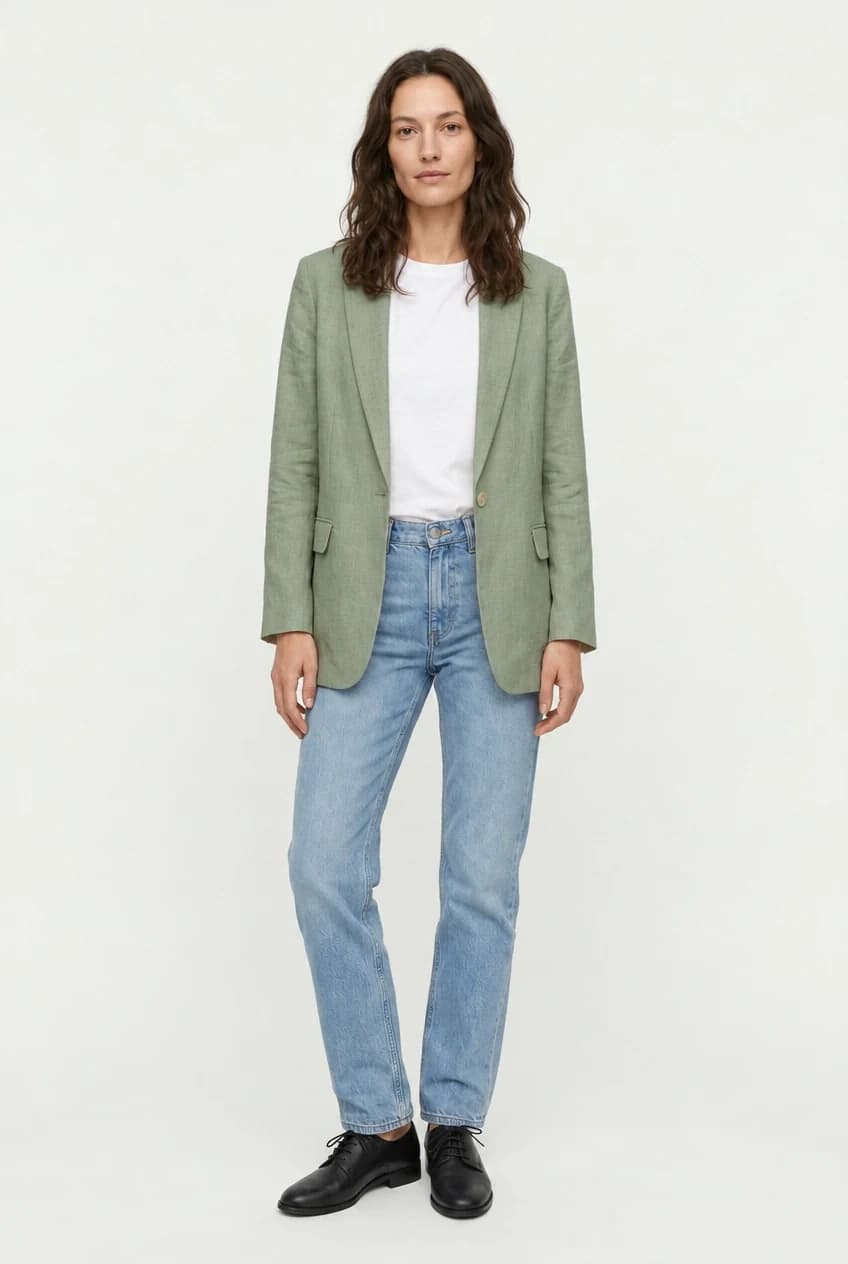
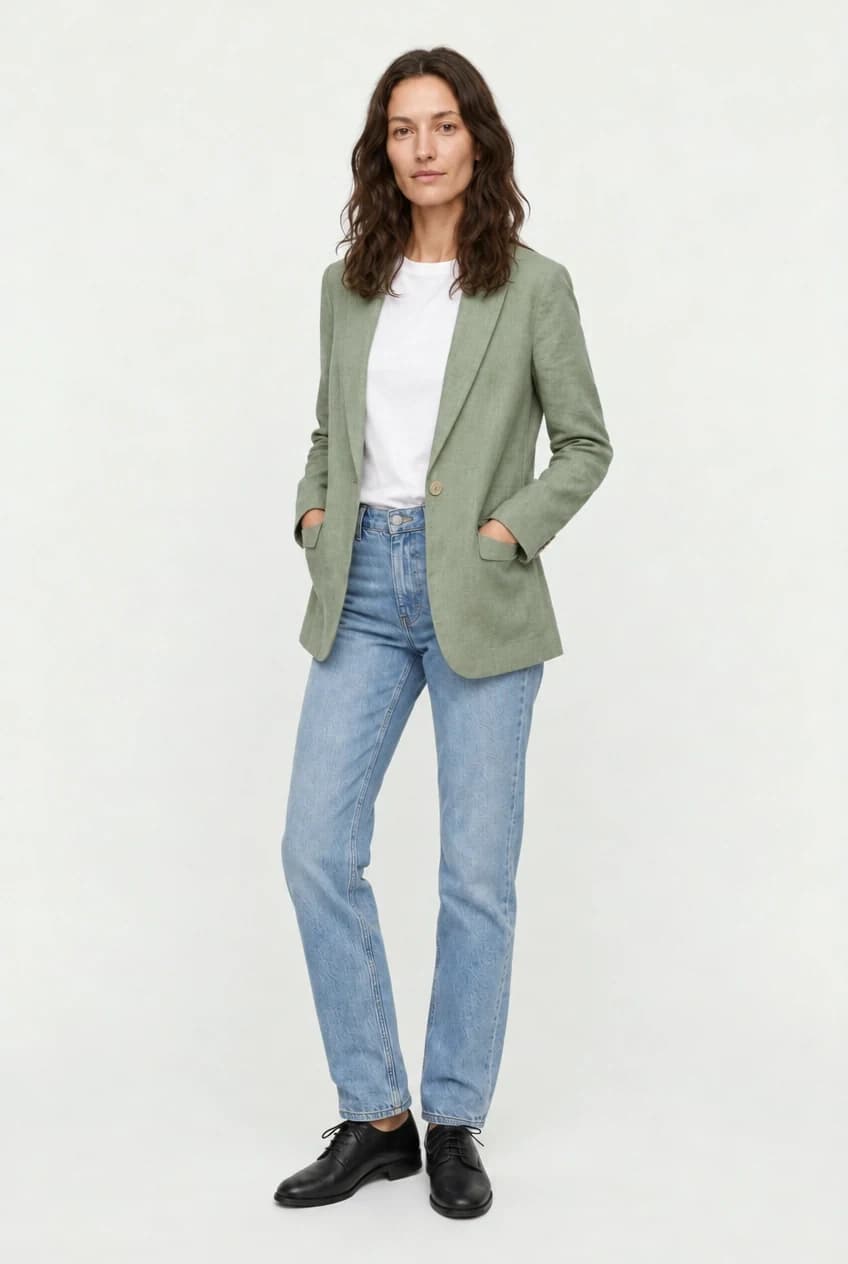
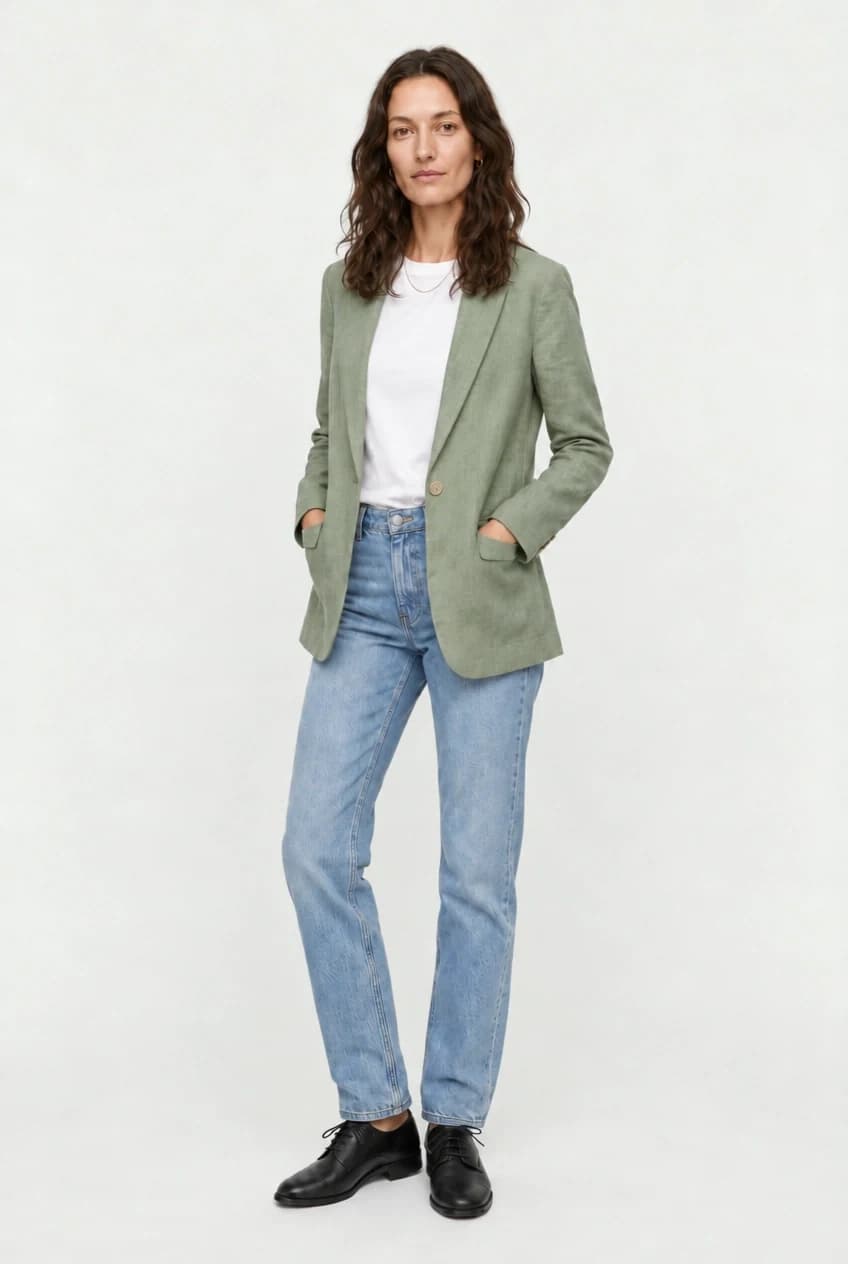
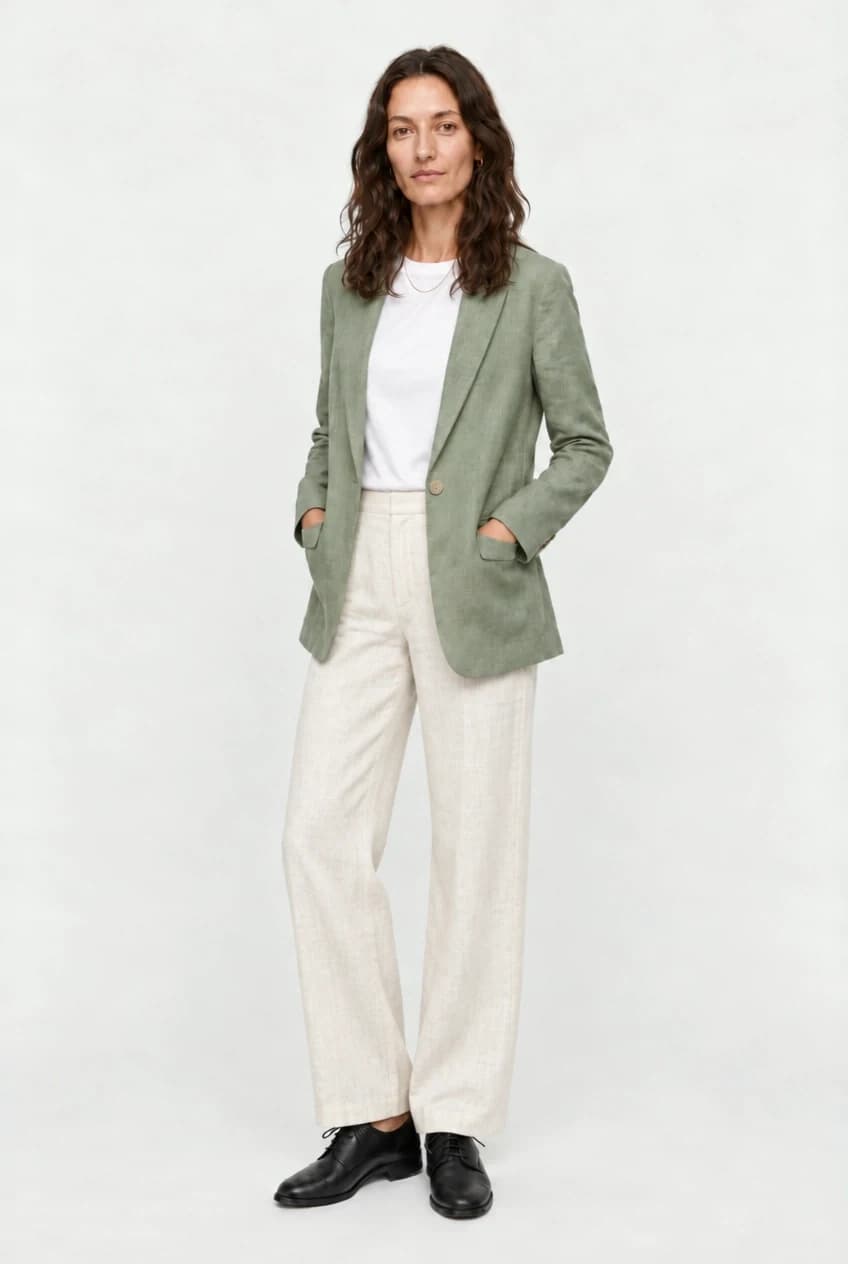
Each step looks fine on its own. Compare the first image with the last one up close, and the skin is waxy, the hair is smeared, and the blazer has lost its linen texture.
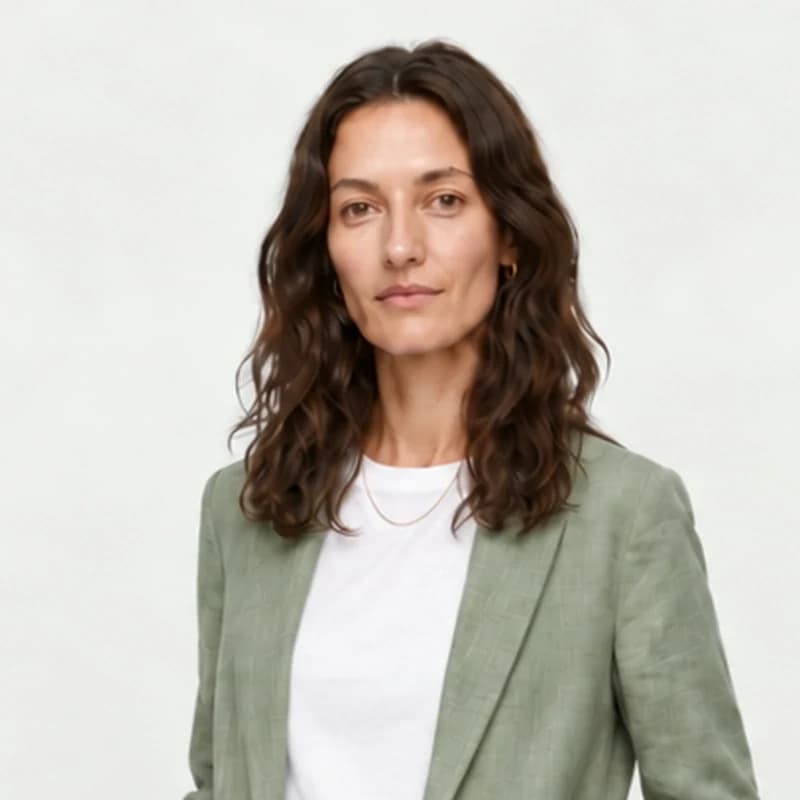
Prevent it
- Ask for all changes in one message. "Make the blazer sage green, add gold hoop earrings, and change the jeans to ivory trousers" is one edit, not three.
- Accept the enhance offer. After a few edits in a row, Agent ends its reply with an offer such as Enhance the photo. Reply "yes" to clean up the image before you continue.
- Go back for big changes. A new person, product, or scene works better from the original photos than from a result that was already edited many times. See Go back to an earlier version.
Repair an image
Say what looks wrong in plain words. Agent picks the fix:
- An enhance restores soft, blurry, or grainy detail without changing the image.
- A repair fixes a fake look or a damaged part and keeps everything else.
| What you see | What to say |
|---|---|
| Soft, blurry, or grainy after many edits | "It's getting blurry after all these edits, enhance it." |
| Plastic, waxy, or AI-looking skin | "The skin looks plastic, repair it and make it look like a real photo." |
| Too sharp, harsh, or over-processed | "It looks too harsh, make it softer and more natural." |
| A distorted hand, face, or body part | "Repair her left hand, it looks distorted." |
| Rough skin when you want a polished look | "Make the skin smoother, like a retouched catalog photo." |
Enhance a worn-down image
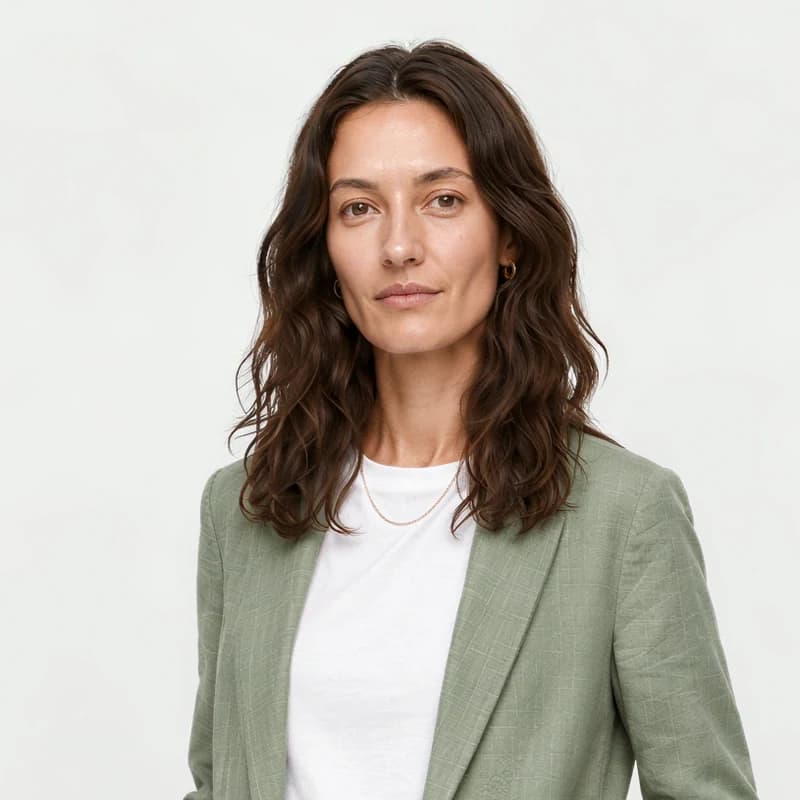
After the four edits above, the image was soft and smeared. An enhance brought back the detail in the hair, the skin, and the linen, and kept everything else as it was.
It's getting blurry after all these edits, enhance it.
Restore a face with a face crop
Over many edits, a face can slowly change: the face shape, the cheeks, or the age. An enhance or a repair improves the quality of the image, but it cannot bring back the exact face.
To fix the face, crop it from an earlier image where it looks right, attach the crop, and ask Agent to use it.
Use the face from this photo for her. Keep everything else the same.
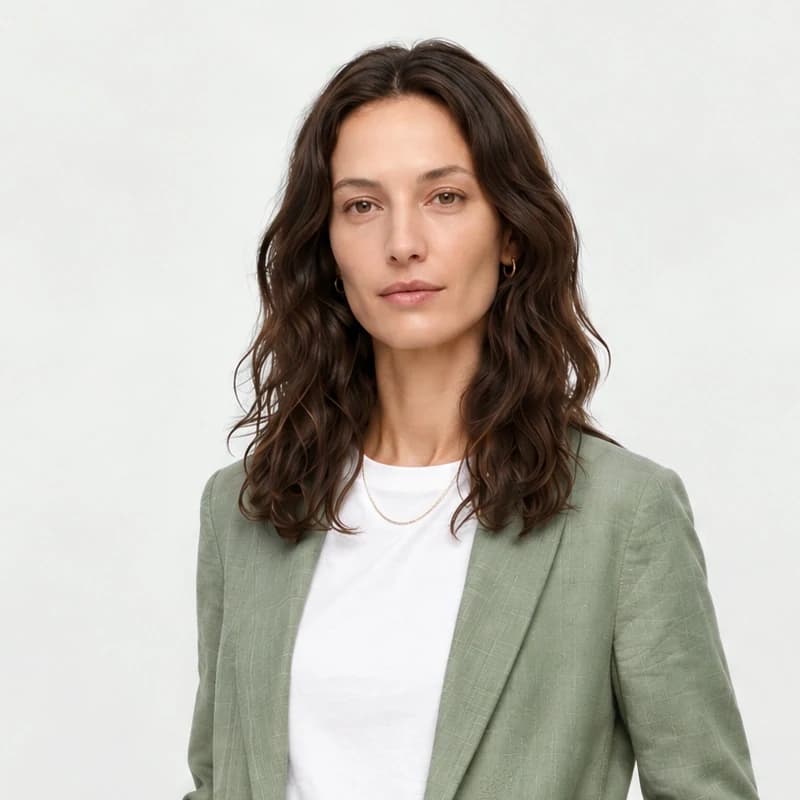
The hair, jewelry, outfit, and pose stay the same. Only the face changes back.
Repair an airbrushed look
An enhance only sharpens what is already there, so it cannot fix skin that looks airbrushed or plastic. Ask for a repair instead. In these examples the repair gave each person real skin, with fine pores, natural tone, and freckles where they fit, and kept the face, outfit, and pose.
Her skin looks too airbrushed and polished. Make it look like a real, unretouched photo.
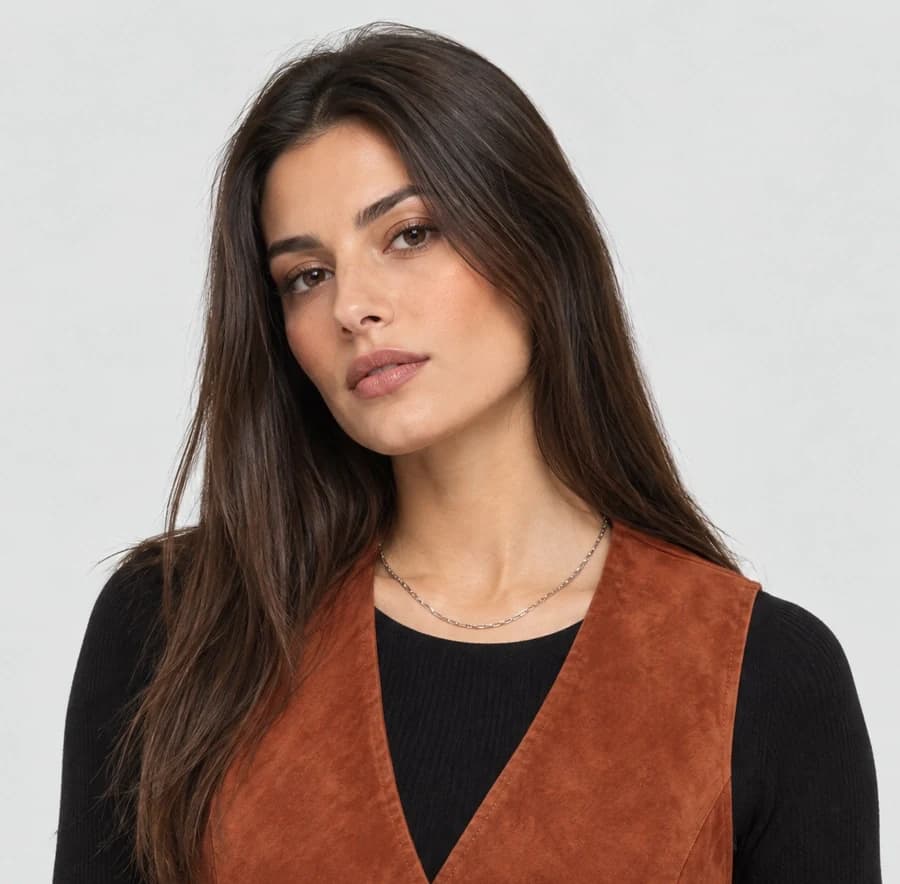
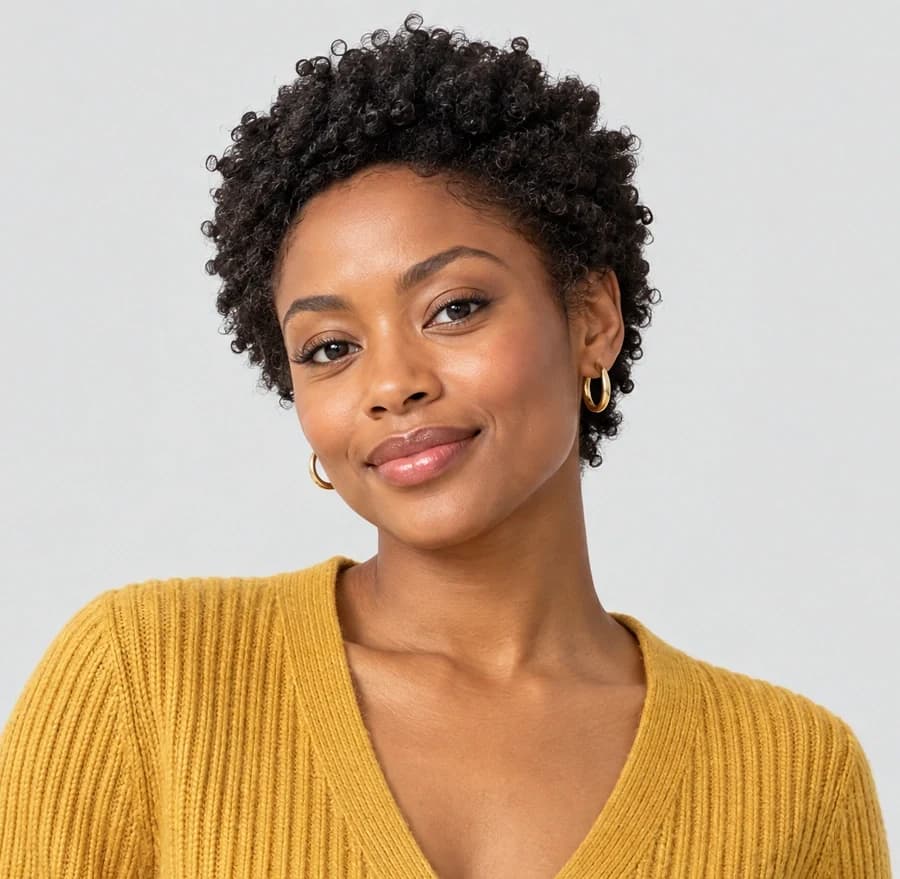

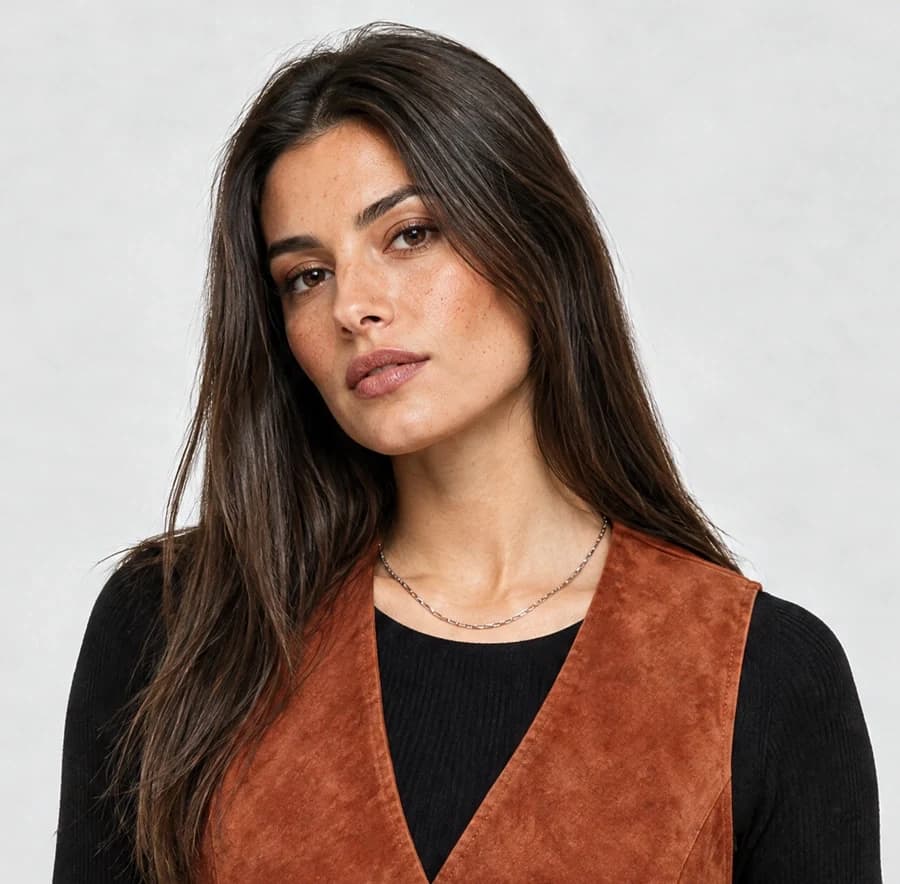
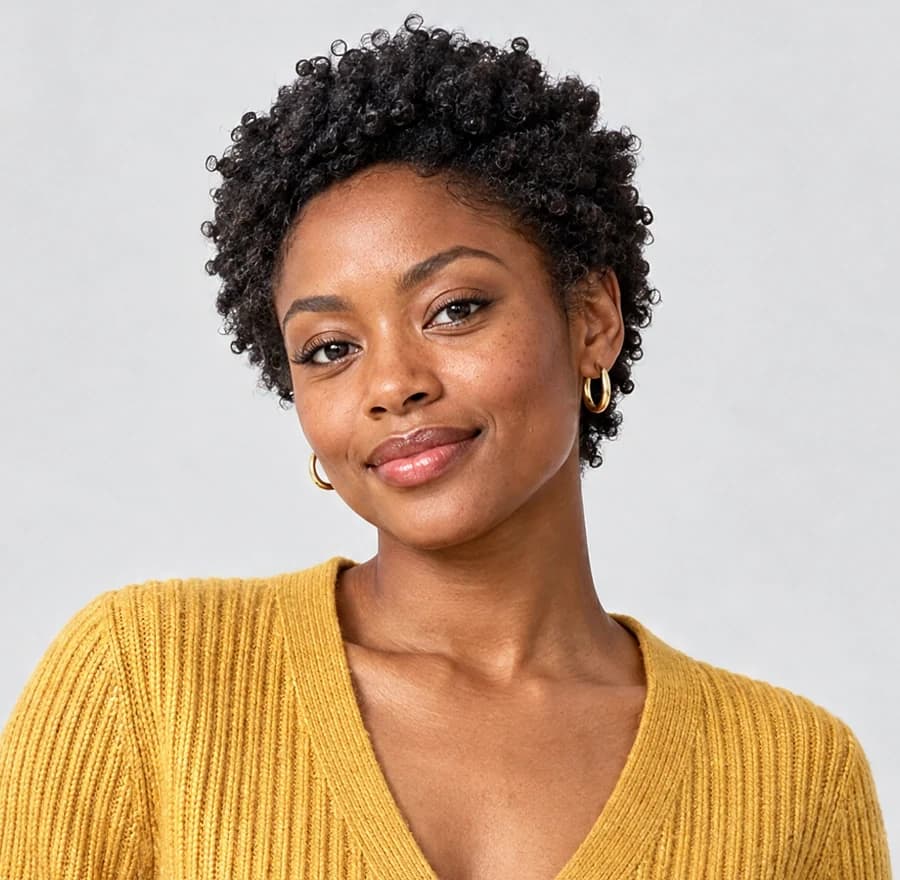
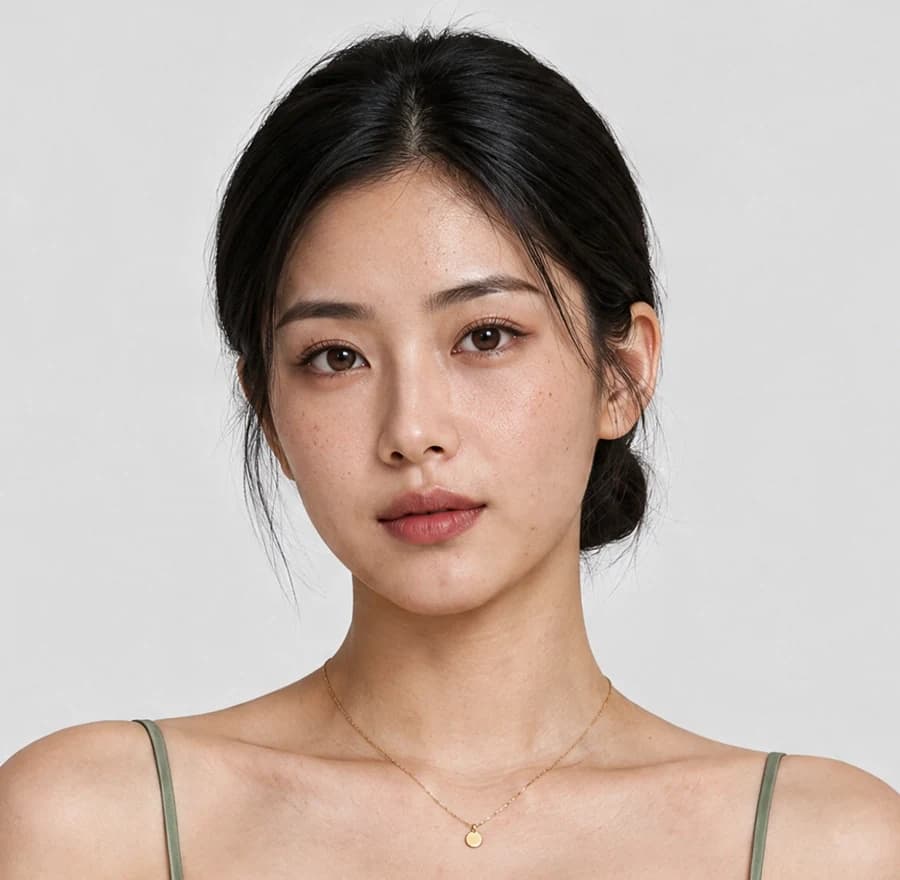
For a small image, Agent may enhance it first and then offer the repair. Reply "yes" to run the repair.
Go back to an earlier version
The latest result is not always the best starting point. When an edit goes in the wrong direction, or the same fix fails twice, ask Agent to start again from an earlier image or from your original photos. Agent then makes one new image with all the changes you kept, instead of one more edit on top.
Go back to the first image and apply all the changes at once.
I liked her better in the jeans. Go back to that version and make the blazer a darker green.
To pick the exact image, type @ in the message box and choose it from Generations or Inputs. See Reference images.
Start again from @generation2 and add the gold jewelry.
Agent also goes back by itself when your feedback rejects a result, for example "that's the wrong dress" or "try again". Its reply says which version it started from.
What to remember
- One message, all changes: fewer edits in a row keep the image cleaner.
- Say yes to the enhance offer: it cleans up the image before the next edit.
- Name the flaw: "plastic skin", "blurry", or "distorted hand" tells Agent which fix to make.
- Fix a face with a face crop: attach the face from an earlier image to bring back the exact person.
- Go back when it drifts: start again from an earlier version or your original photos.
Keep going
- Follow a full conversation in Mannequin to Photo Shoot.
- Make a final image larger with Upscale images.
- For more on editing, see Create and edit images.
- Keep the same person across many images with How to Keep Your Models Consistent.
Last updated on