Create Model
Create a reusable AI model identity that stays consistent across visuals. Use Create Model to generate a model that matches your brand style and reuse it in Studio and Edit.
What is Create Model?
Create Model builds a reusable identity, not just a single image. Once generated, your model is saved to your library for use in future generations across campaigns and product lines.
How to Use It
Describe the Model
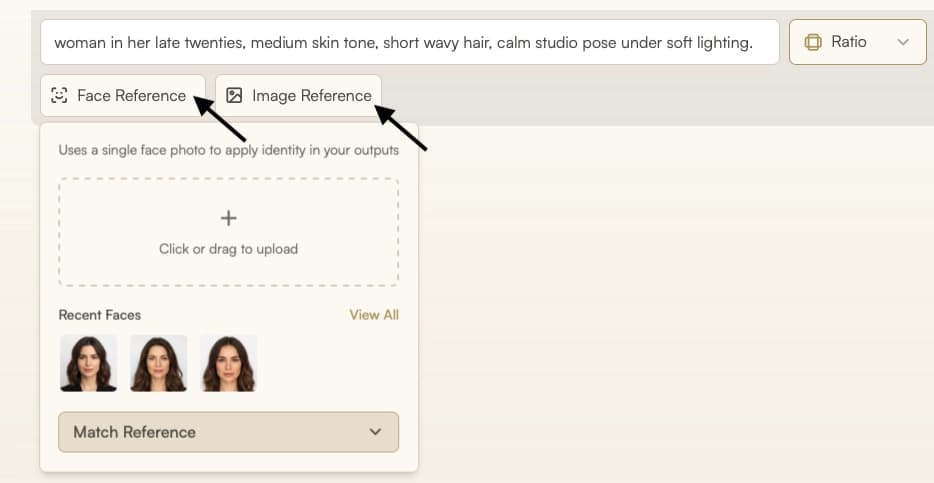
Write a clear prompt that covers age, body type, expression, styling, and lighting. For example: “woman in her late twenties, medium skin tone, short wavy hair, calm studio pose under soft lighting.”

Add Optional References
Add a Face Reference to guide identity or an Image Reference to guide composition and pose. Then click Generate AI Model.
Refine with Variations
Use quick-edit options on the result:
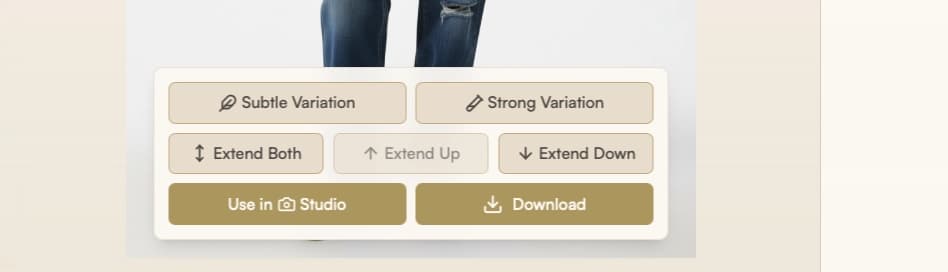
- Subtle Variation for small tweaks to the model's appearance.
- Strong Variation for a more noticeable change
- Use Extend Up, Extend Down, or Extend Both to zoom out in a chosen direction and reveal more of the model’s body or face.
Use in Studio
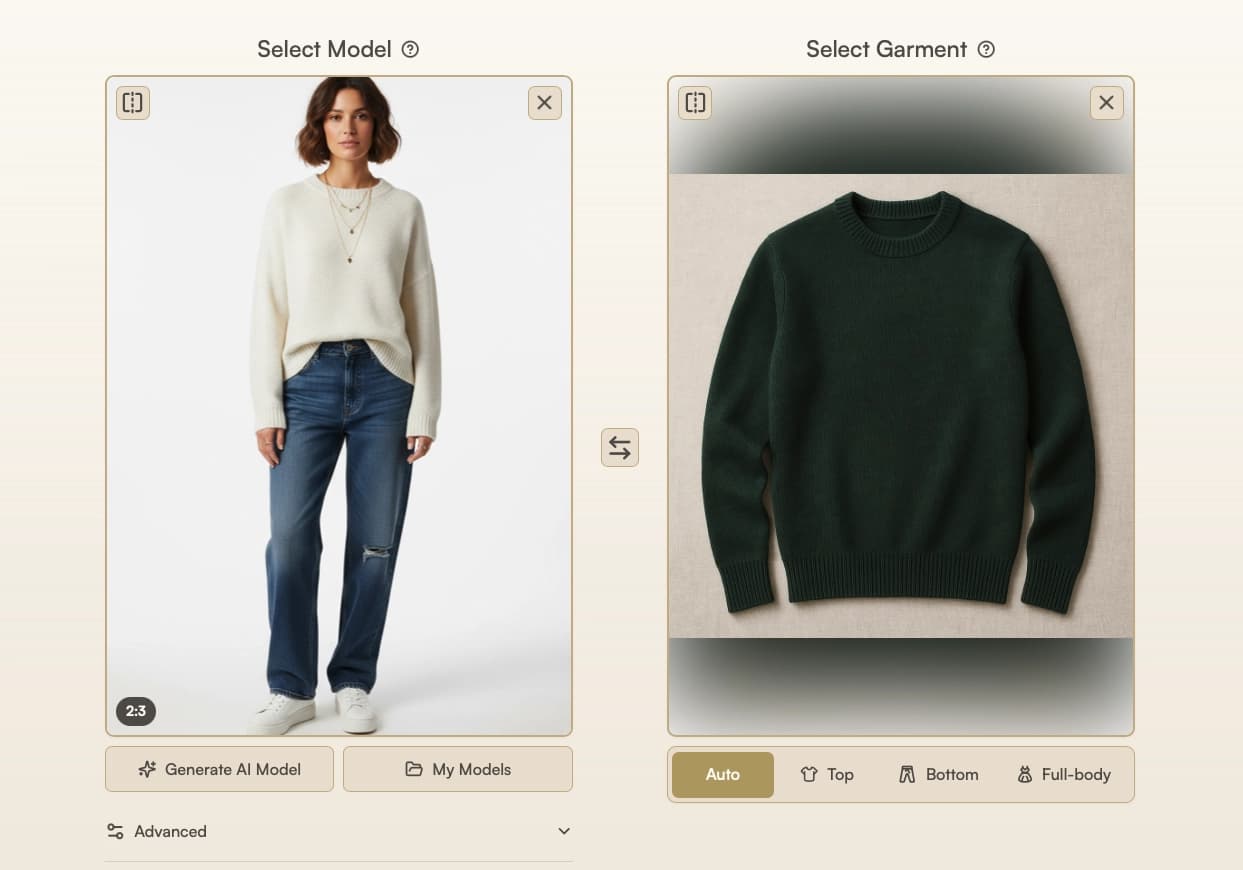
Click Use in Studio to open Try On and apply products to this model. Open the image in Edit for background or framing changes.
Parameters
| Parameter | Description |
|---|---|
| Model prompt | Text that describes age, body type, expression, styling, and lighting. |
| Face reference | Optional face photo to guide identity. |
| Image reference | Optional image to guide composition and pose. The AI won't copy the exact details from the image, but will use it as inspiration. |
| Number of images | Choose 1–4 images to generate in one run. Outputs stay on-theme, are grouped as a single scrollable entry in Gallery, and credits scale with the number selected. |
| Resolution | Supported: Precise 1K (default), Balanced 4K, Creative 4K (Pro/Agency). See Parameter Deep Dives: Resolution for behavior and tradeoffs. |
| Variation type | Choose Subtle or Strong for the level of change you want. |
| Extend | Choose Extend Up, Extend Down, or Extend Both to zoom out in a chosen direction and reveal more of the model’s body or face. |
Best Practices
- For full-body shots, include details about the hair and footwear in your prompt to help the AI generate a complete head-to-toe frame.
- You can adjust the pose and background in Edit after creating your model, so focus on perfecting the appearance first.
Troubleshooting
- Can't achieve full body shot (head cropped or feet not showing) → Include details about the hair and footwear in your prompt to help the AI generate a complete head-to-toe frame. You can also use the Extend option to zoom out in a chosen direction and reveal more of the model’s body or face.
Where Next?
Once you’ve created your model, move on to: