How to Create a Realistic AI Model
This guide shows you three ways to create a realistic AI fashion model: by describing the model in text, by starting from a model in Elements, or by starting from a photo of a real person. Every step uses the exact prompt from the video, so you can follow along in Agent. By the end you will have a model you can dress, reshoot, and reuse across your products.
Every example below was made in Agent at 2K, Balanced (set in Generation settings).
Method 1: Text
Use text when you have no one in mind yet. You start with a short prompt, look at what comes back, and steer from there, one detail per step.
Start with the default
You do not need a long prompt. Three words give you a clean, realistic model on a white background, ready to work with.
New conversation
Create a model

Start with one detail
Same three words, plus one detail. A new model comes back with red hair.
New conversation
Create a model with red hair

Describe the model (5 categories)
Be specific. These five details do most of the work:
- Gender
- Ethnicity
- Age
- Hair
- Body
New conversation
Create a model. She is an East Asian woman in her early twenties with a bob hairstyle and a slim build.

Change the details
Stay in the same conversation and tell Agent what to change. The model stays the same person while the clothes and hair change.
Continue the conversation
She should be wearing a red tracksuit and running shoes. Her hair should be long and slicked back.

Change the camera angle
Still in the same conversation, ask for a different camera angle. The model and clothes stay the same, only the camera moves.
Continue the conversation
Close up portrait of her face

Method 2: Elements Library
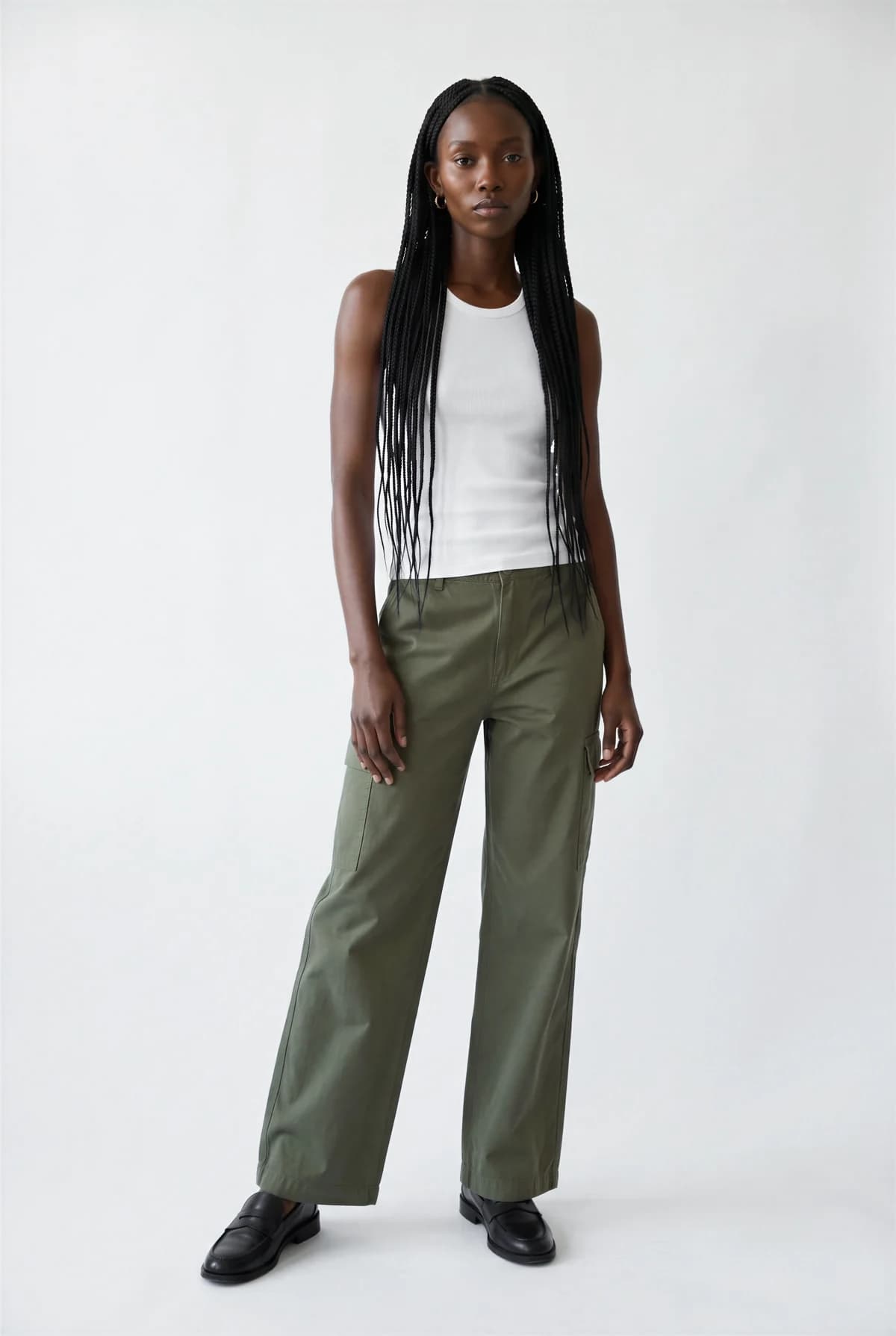
When you want ideas, Elements is a good place to start. Open Add images in Agent, select Browse Elements, and pick a model.


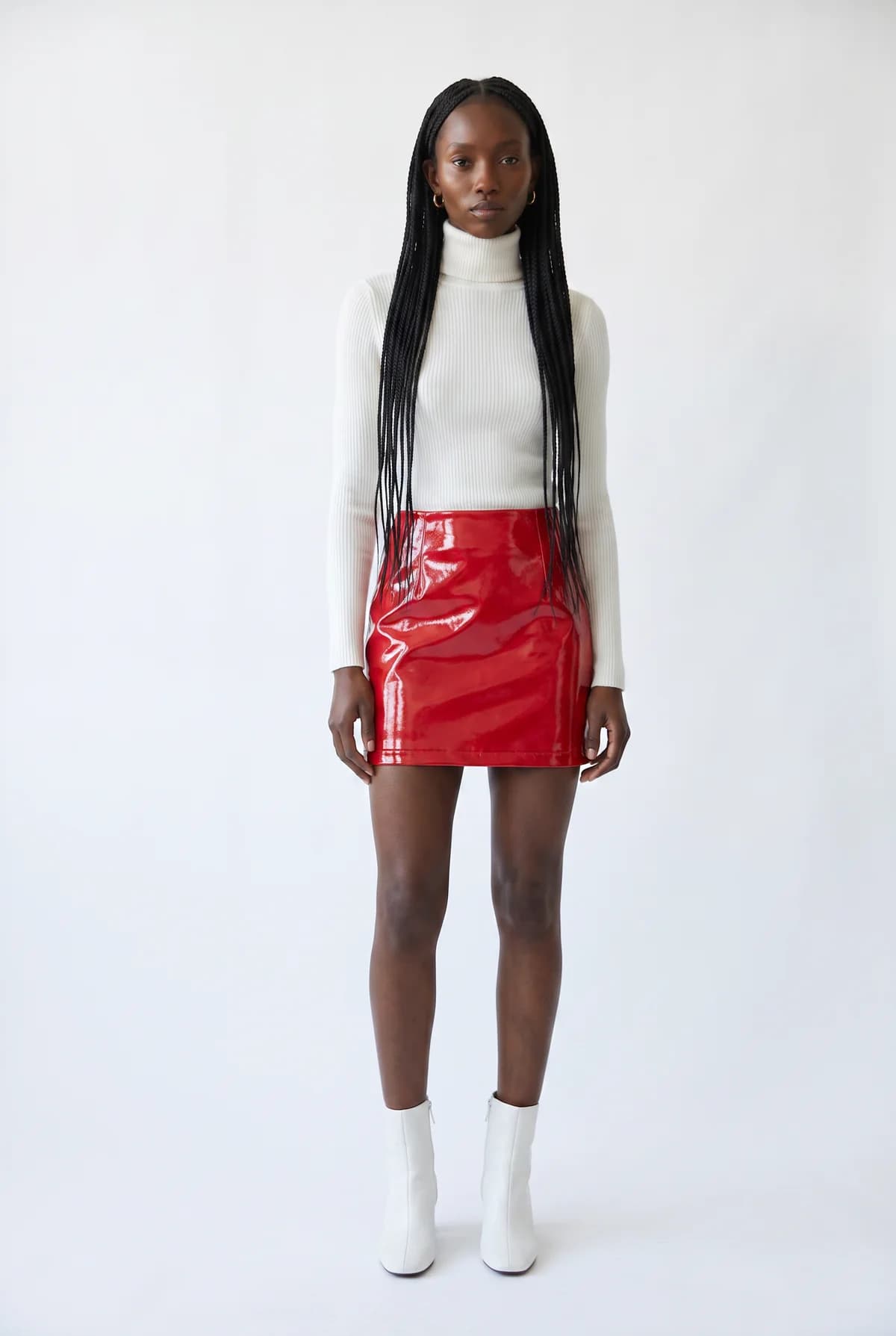
She's attached, so this prompt edits her. She stays the same person and only the clothes change.
New conversation
She should be wearing a white turtle neck, red patent leather mini skirt, and white leather boots.
Method 3: Reference Image
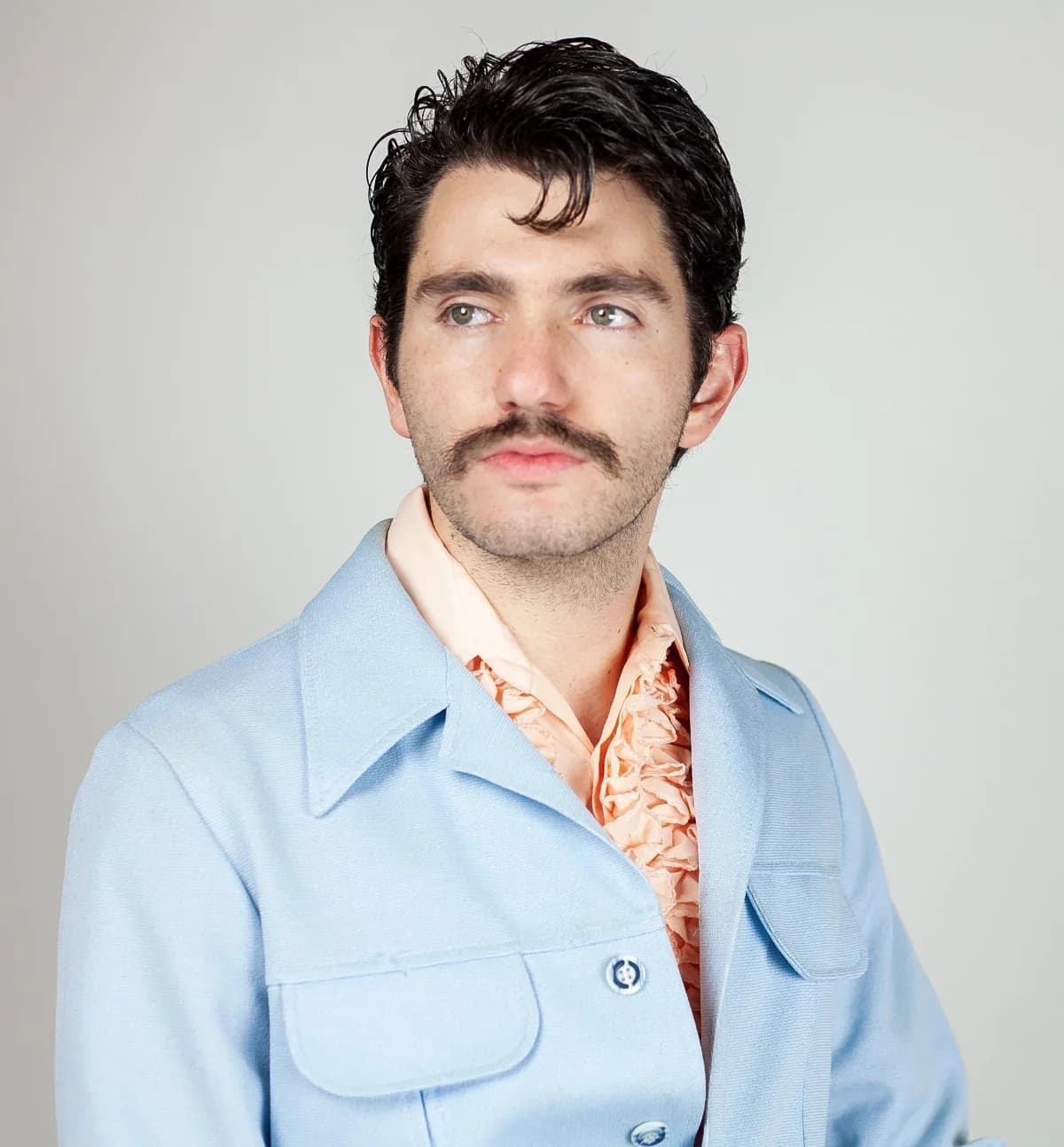
When the model has to be a specific person, start from a photo. A sharp, well lit photo with the face clearly visible gives you the best result.
New conversation
Make him a fashion model, full body.
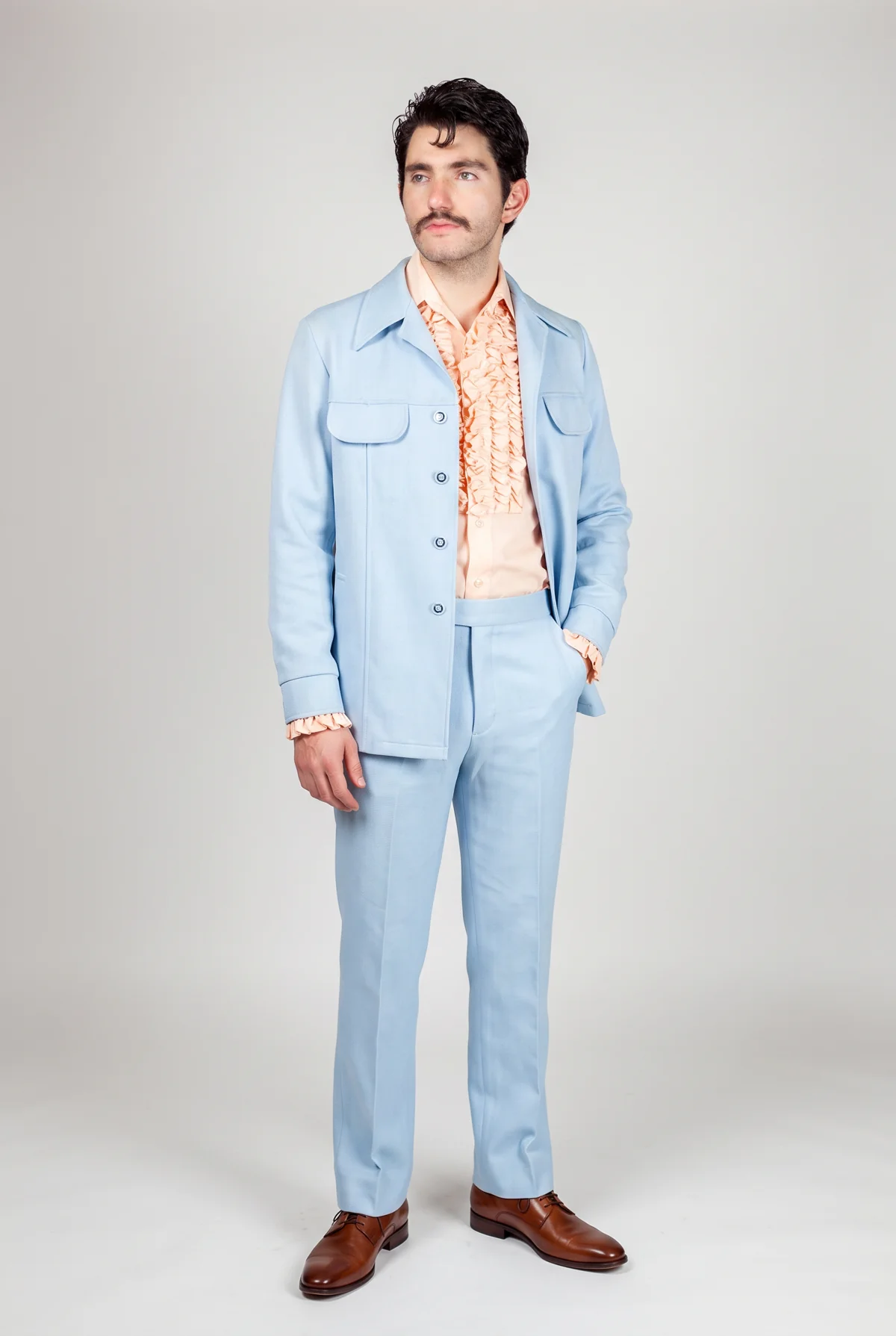
Restyle from the original photo
To change the outfit, reference the original photo instead of the image Agent just made. Each new generation built on an old one loses some quality. In the media panel, select the @ button on your photo and describe the change.

Continue the conversation
@input1 Make him a fashion model, full body, relaxed pose. He should be wearing a cream knit t-shirt, brown pleated trousers, and black boots.

Close up
For a close up, stay in the same conversation and describe the edit.
Continue the conversation
Close up editorial side shot, he is looking at the camera with an intense gaze

Which method to use
- Start from scratch: describe the model with text.
- Need some ideas: start from Elements.
- Need this exact person: start from a reference image.
Keep going
- To reuse the same model across many products, read How to Keep Your Models Consistent and Face Reference.
- For more on writing prompts, see Prompting in FASHN.