
Remove Background
Isolate your model or product for clean exports. Remove Background deletes the background from a generated image so you can export transparency or fill with a solid color.
What is Remove Background?
Remove Background deletes the background and leaves the subject intact. Choose a transparent background for overlays or a solid color to match your brand.
How to Use It
Select an Image
In Edit, choose any generated image from your workspace. For best results, start with a clear, well‑lit photo where the subject stands out from the background.
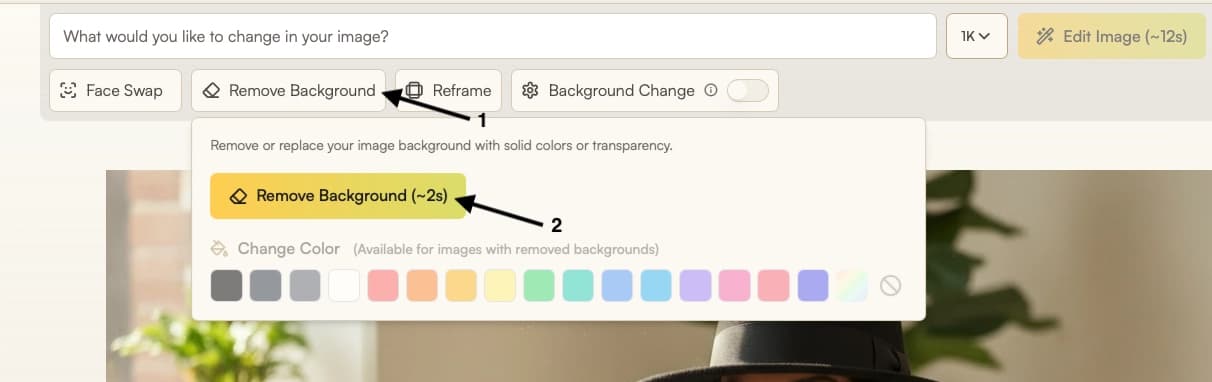
Click Remove Background
Select Remove Background from the toolbar. The system detects the subject and removes the background in under 2 seconds.
Choose Output
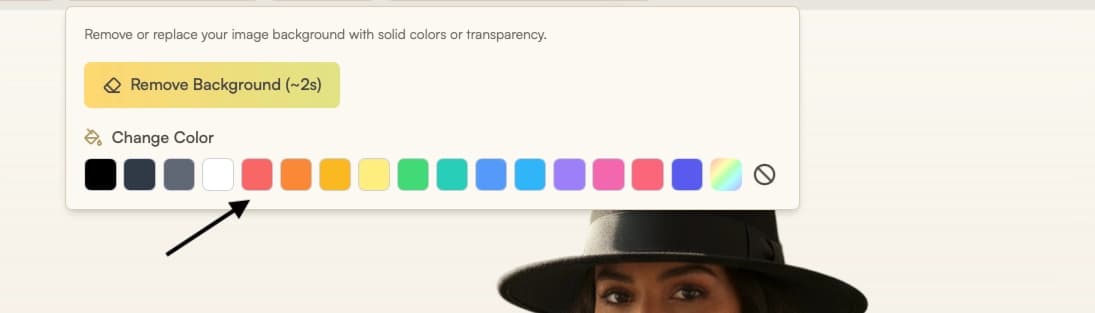
After removal, choose how to export:
- Keep a transparent background for ecommerce or compositing
- Fill with a solid color to match your brand palette
- Or continue in Edit to set a new scene
Prepare for Export or Continue Editing
- Download or use Export for Web in Gallery
- To keep the background transparent, export as PNG for full quality or WEBP for smaller file size with transparency preserved.
- Most in-app edits remove transparency, so perform them first and export with transparency as the final step.
Parameters
| Parameter | Description |
|---|---|
| Image | The image you want to edit, opened from Gallery or uploaded in Edit. |
| Color | (When image is transparent) Choose a brand color or neutral tone for catalogs. |
Limitations
- High-quality background removal is optimized for images up to 2K resolution.
- Fine edges such as hair strands or thin fabric fibers may be imperfectly detected, resulting in slight loss or background artifacts.
- When an image contains multiple potential foreground elements (for example, a person and a table in front of them), the system may preserve all of them rather than removing secondary objects.
Where Next?
After removing your background, you can:
- Export your image with transparency in the Gallery